Troubleshooting
Overview
Here are some tips to troubleshoot a failed upgrade:
- Check version-specific upgrade notes. You can click the version in the support matrix table to see if there are any known issues.
- Dive into the upgrade design proposal. The following section briefly describes phases within an upgrade and possible diagnostic methods.
Upgrade Flow
The Harvester upgrade process involves several phases.
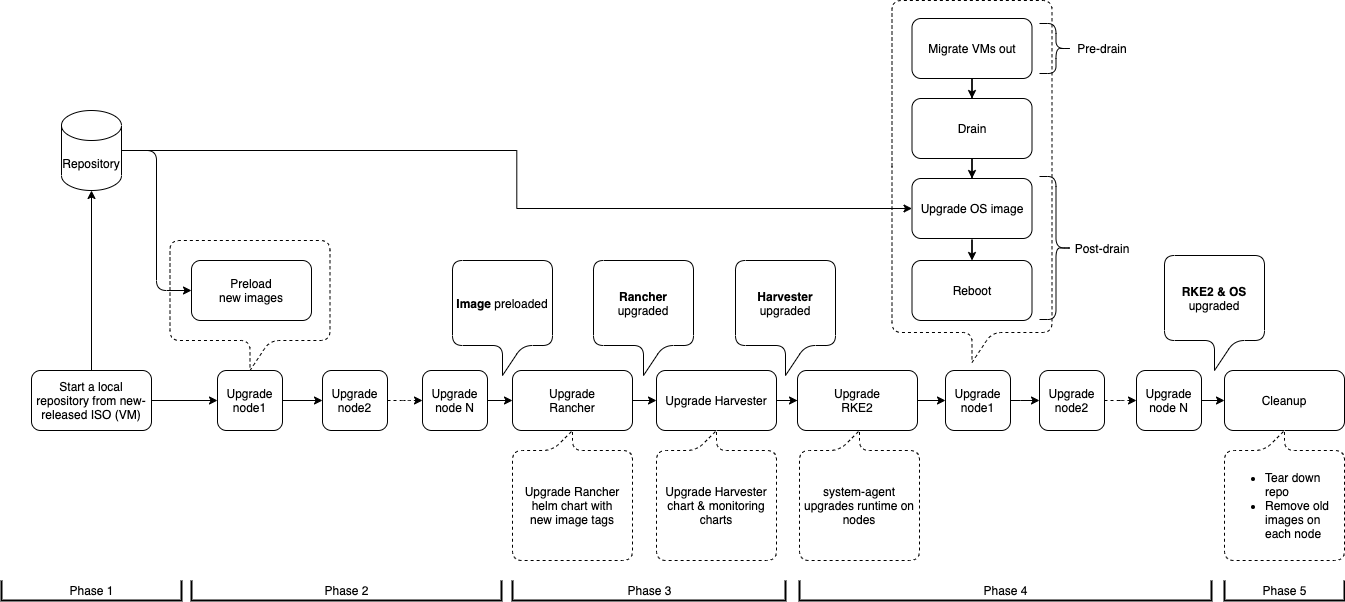
Phase 1: Provision an Upgrade Repository Virtual Machine
The Harvester controller downloads a release ISO file and uses it to provision a repository virtual machine. The virtual machine name uses the format upgrade-repo-hvst-xxxx.
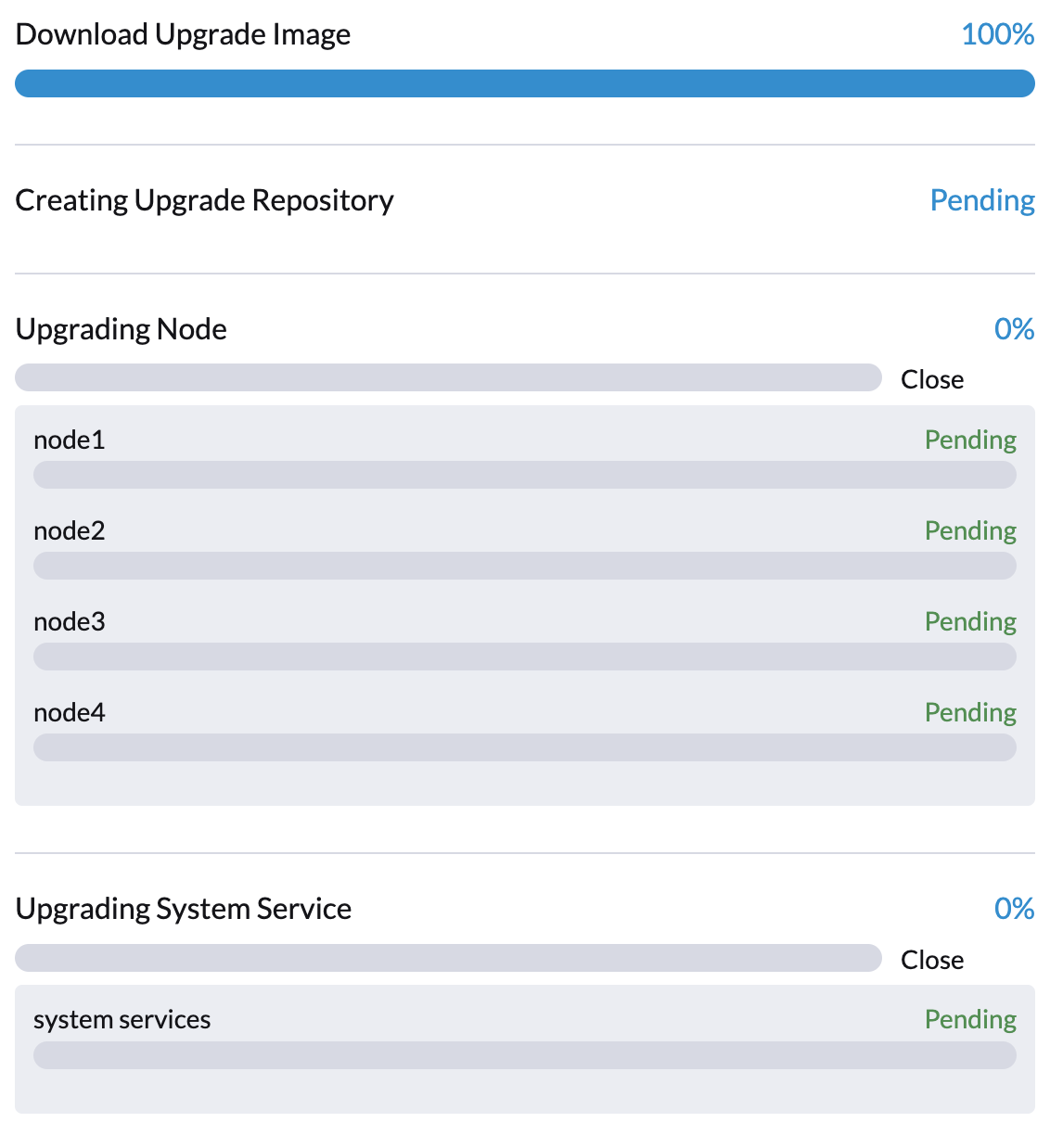
Network speed and cluster resource utilization influence the amount of time required to complete this phase. Upgrades typically fail because of network speed issues.
If the upgrade fails at this point, check the status of the repository virtual machine and its corresponding pod before restarting the upgrade. You can check the status using the command kubectl get vm -n harvester-system.
Example:
$ kubectl get vm -n harvester-system
NAME                              AGE    STATUS     READY
upgrade-repo-hvst-upgrade-9gmg2   101s   Starting   False

$ kubectl get pods -n harvester-system | grep upgrade-repo-hvst
virt-launcher-upgrade-repo-hvst-upgrade-9gmg2-4mnmq     1/1     Running     0          4m44s
Phase 2: Preload Container Images
The Harvester controller creates jobs that download and preload container images from the repository virtual machine. These images are required for the next release.
Allow some time for the images to be downloaded and preloaded on all nodes.
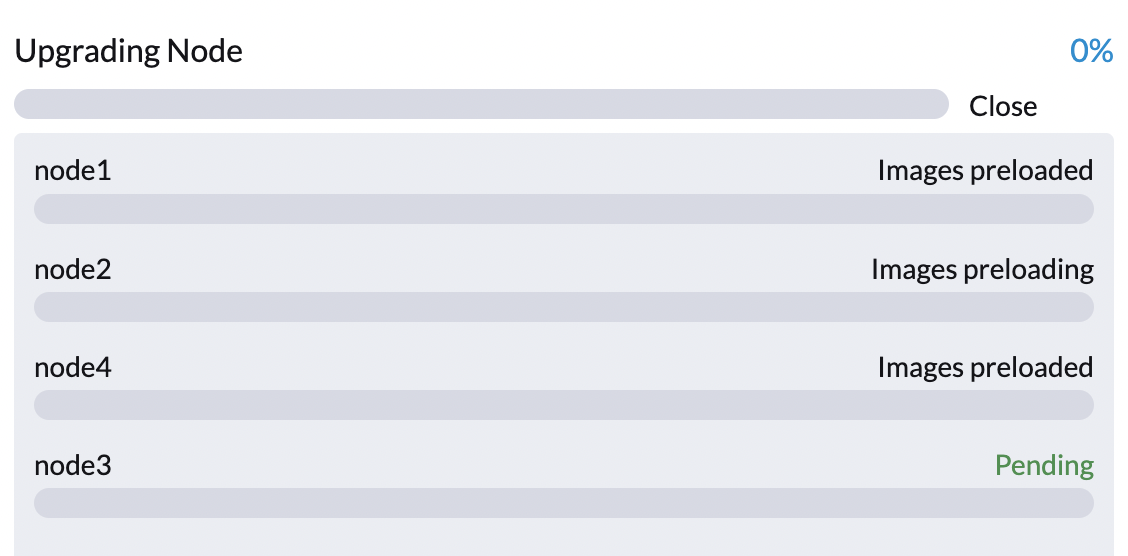
If the upgrade fails at this point, check the job logs in the cattle-system namespace before restarting the upgrade. You can check the logs using the command kubectl get jobs -n cattle-system | grep prepare.
Example:
$ kubectl get jobs -n cattle-system | grep prepare
apply-hvst-upgrade-9gmg2-prepare-on-node1-with-2bbea1599a-f0e86   0/1           47s        47s
apply-hvst-upgrade-9gmg2-prepare-on-node4-with-2bbea1599a-041e4   1/1           2m3s       2m50s

$ kubectl logs jobs/apply-hvst-upgrade-9gmg2-prepare-on-node1-with-2bbea1599a-f0e86 -n cattle-system
...
Phase 3: Upgrade System Services
The Harvester controller creates a job that upgrades component Helm charts.
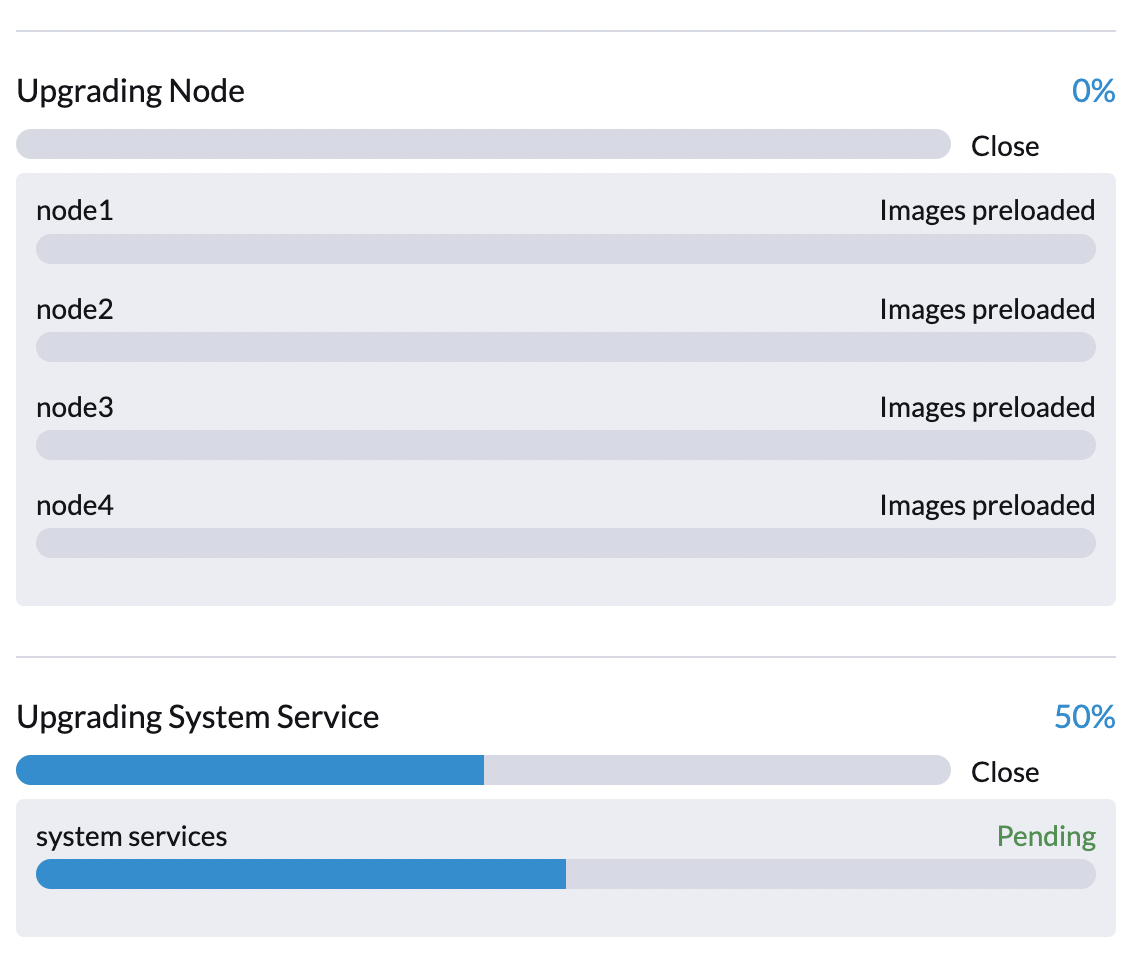
You can check the apply-manifest job using the command $ kubectl get jobs -n harvester-system -l harvesterhci.io/upgradeComponent=manifest.
Example:
$ kubectl get jobs -n harvester-system -l harvesterhci.io/upgradeComponent=manifest
NAME                                 COMPLETIONS   DURATION   AGE
hvst-upgrade-9gmg2-apply-manifests   0/1           46s        46s

$ kubectl logs jobs/hvst-upgrade-9gmg2-apply-manifests -n harvester-system
...
If the upgrade fails at this point, you must generate a support bundle before restarting the upgrade. The support bundle contains logs and resource manifests that can help identify the cause of the failure.
Phase 4: Upgrade Nodes
The Harvester controller creates the following jobs on each node:
- Multi-node clusters:
pre-drainjob: Live-migrates or shuts down virtual machines on the node. Once completed, the embedded Rancher service upgrades the RKE2 runtime on the node.post-drainjob: Upgrades and reboots the operating system.
- Single-node clusters:
single-node-upgradejob: Upgrades the operating system and RKE2 runtime. The job name uses the formathvst-upgrade-xxx-single-node-upgrade-<hostname>.
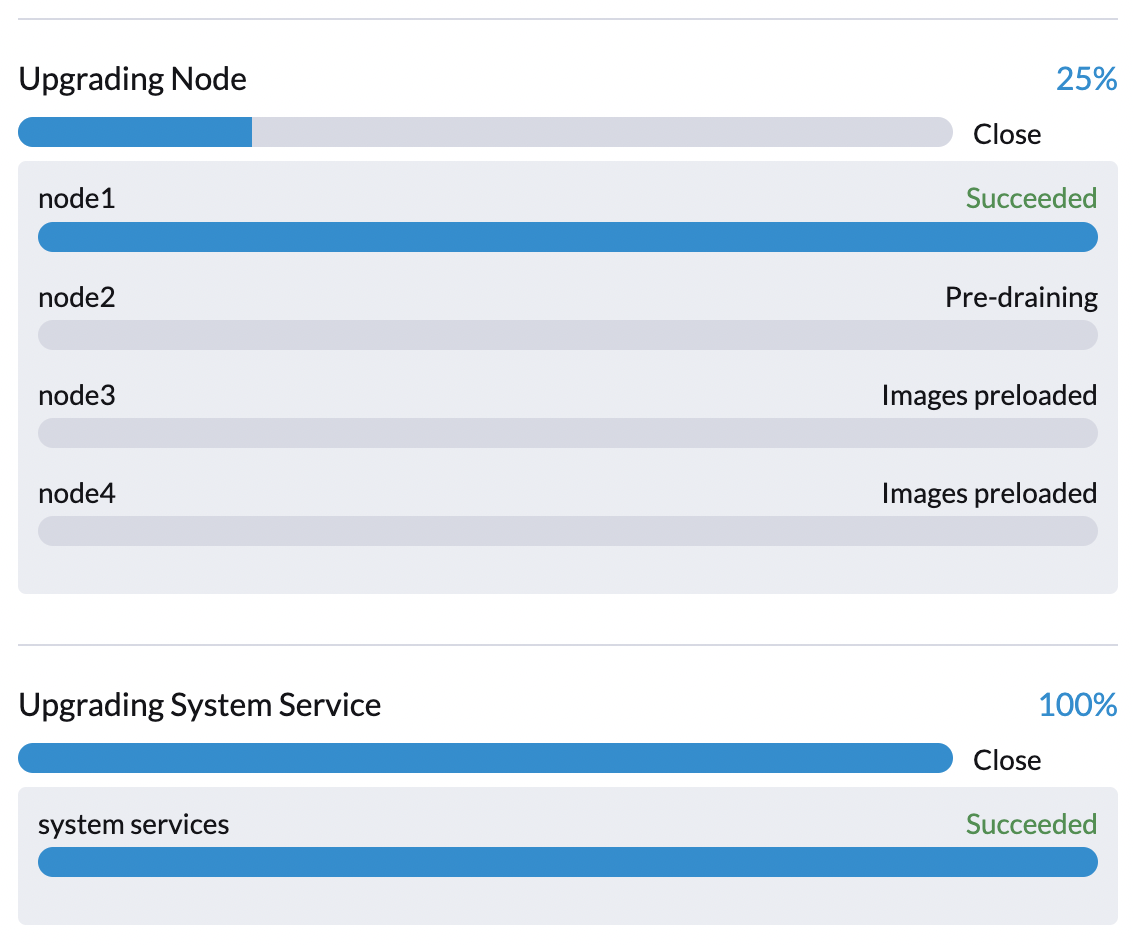
You can check the jobs running on each node by running the command kubectl get jobs -n harvester-system -l harvesterhci.io/upgradeComponent=node.
Example:
$ kubectl get jobs -n harvester-system -l harvesterhci.io/upgradeComponent=node
NAME                                  COMPLETIONS   DURATION   AGE
hvst-upgrade-9gmg2-post-drain-node1   1/1           118s       6m34s
hvst-upgrade-9gmg2-post-drain-node2   0/1           9s         9s
hvst-upgrade-9gmg2-pre-drain-node1    1/1           3s         8m14s
hvst-upgrade-9gmg2-pre-drain-node2    1/1           7s         85s

$ kubectl logs -n harvester-system jobs/hvst-upgrade-9gmg2-post-drain-node2
...
If the upgrade fails at this point, DO NOT restart the upgrade unless instructed by SUSE support.
Phase 5: Cleanup
The Harvester controller deletes the repository virtual machine and all files that are no longer necessary.
Common Operations
Restart the Upgrade
If the ongoing upgrade fails or becomes stuck at Phase 4: Upgrade Nodes, DO NOT restart the upgrade unless instructed by SUSE support.
-
Generate a support bundle.
-
Click the Upgrade button on the Harvester UI Dashboard screen.
If you customized the version, you might need to create the version object again.
Stop the Ongoing Upgrade
-
Log in to a control plane node.
-
List the
UpgradeCRs in the cluster.# become root
$ sudo -i
# list the on-going upgrade
$ kubectl get upgrade.harvesterhci.io -n harvester-system -l harvesterhci.io/latestUpgrade=true
NAME AGE
hvst-upgrade-9gmg2 10m -
Delete the
UpgradeCR.$ kubectl delete upgrade.harvesterhci.io/hvst-upgrade-9gmg2 -n harvester-system -
Resume the paused ManagedCharts.
ManagedCharts are paused to avoid a data race between the upgrade and other processes. When the upgrade is manually stopped, the ManagedCharts might not been resumed, you need to manually resume all paused ManagedCharts.
cat > resumeallcharts.sh << 'FOE'
resume_all_charts() {

  local patchfile="/tmp/charttmp.yaml"

  cat >"$patchfile" << 'EOF'
spec:
  paused: false
EOF
  echo "the to-be-patched file"
  cat "$patchfile"

  local charts="harvester harvester-crd rancher-monitoring-crd rancher-logging-crd"

  for chart in $charts; do
    echo "unapuse managedchart $chart"
    kubectl patch managedcharts.management.cattle.io $chart -n fleet-local --patch-file "$patchfile" --type merge || echo "failed, check reason"
  done

  rm "$patchfile"
}

resume_all_charts

FOE

chmod +x ./resumeallcharts.sh

./resumeallcharts.sh
Download Upgrade Logs
Harvester automatically collects all the upgrade-related logs and display the upgrade procedure. By default, this is enabled. You can also choose to opt out of such behavior.
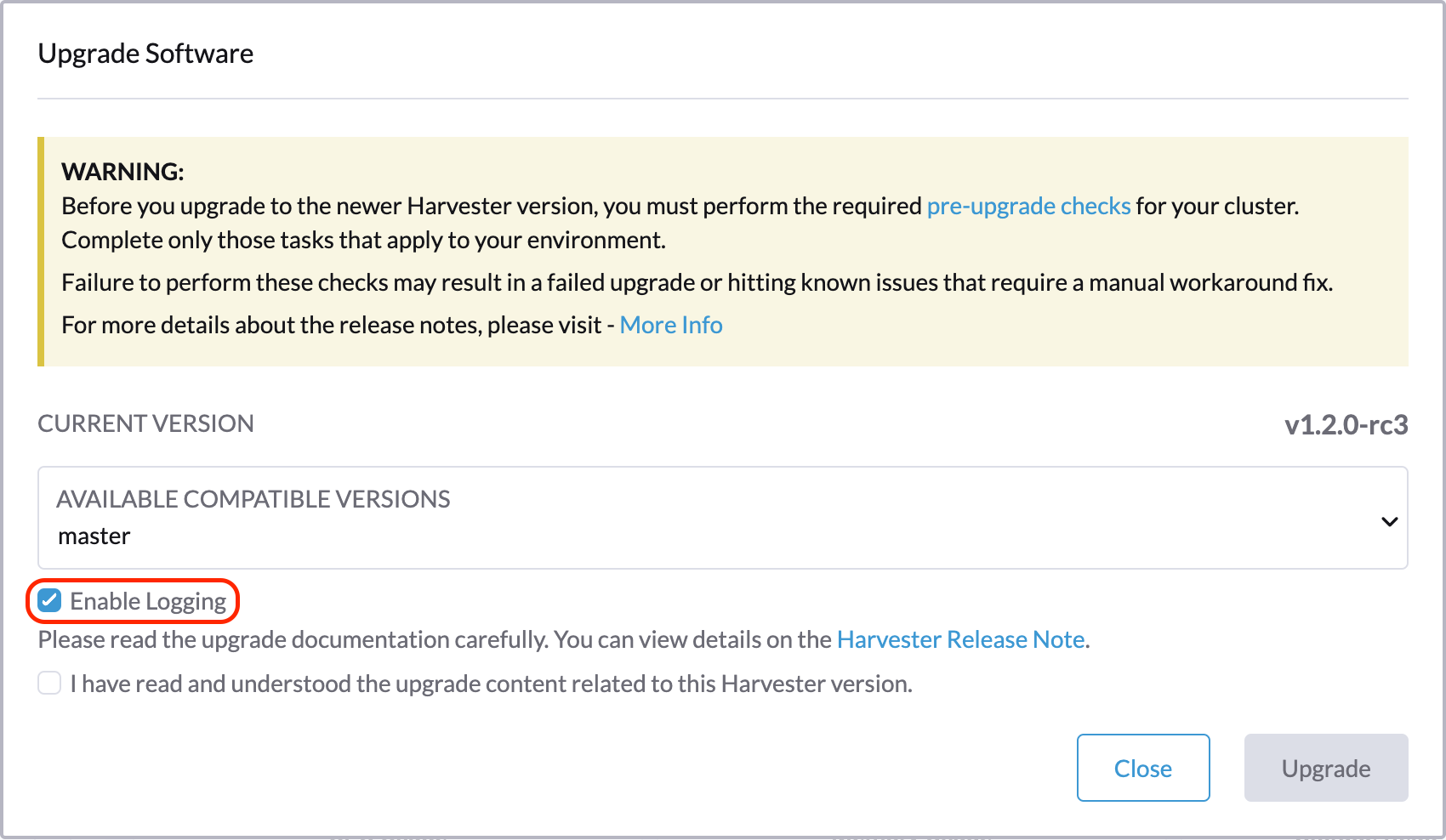
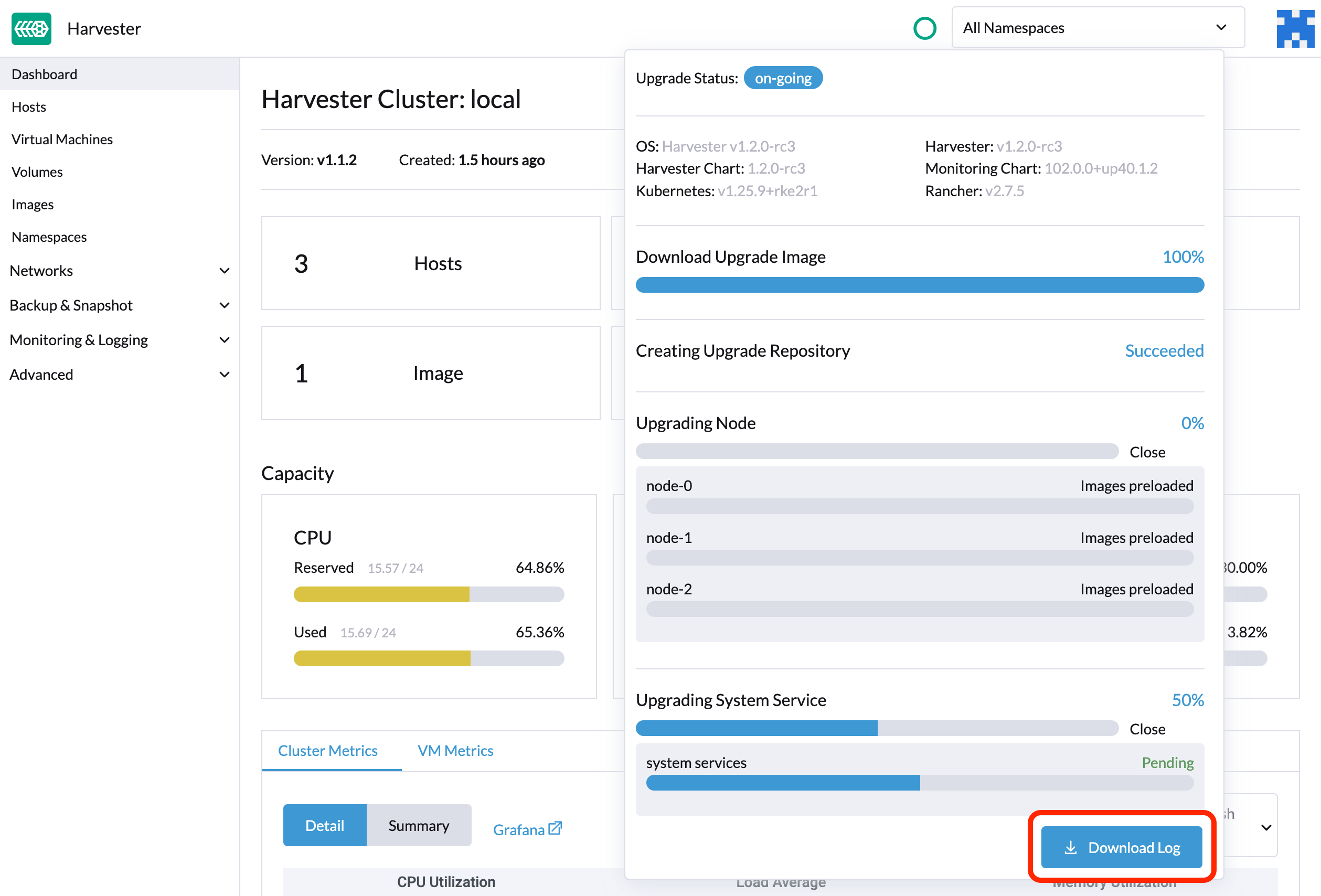
You can click the Download Log button to download the log archive during an upgrade.
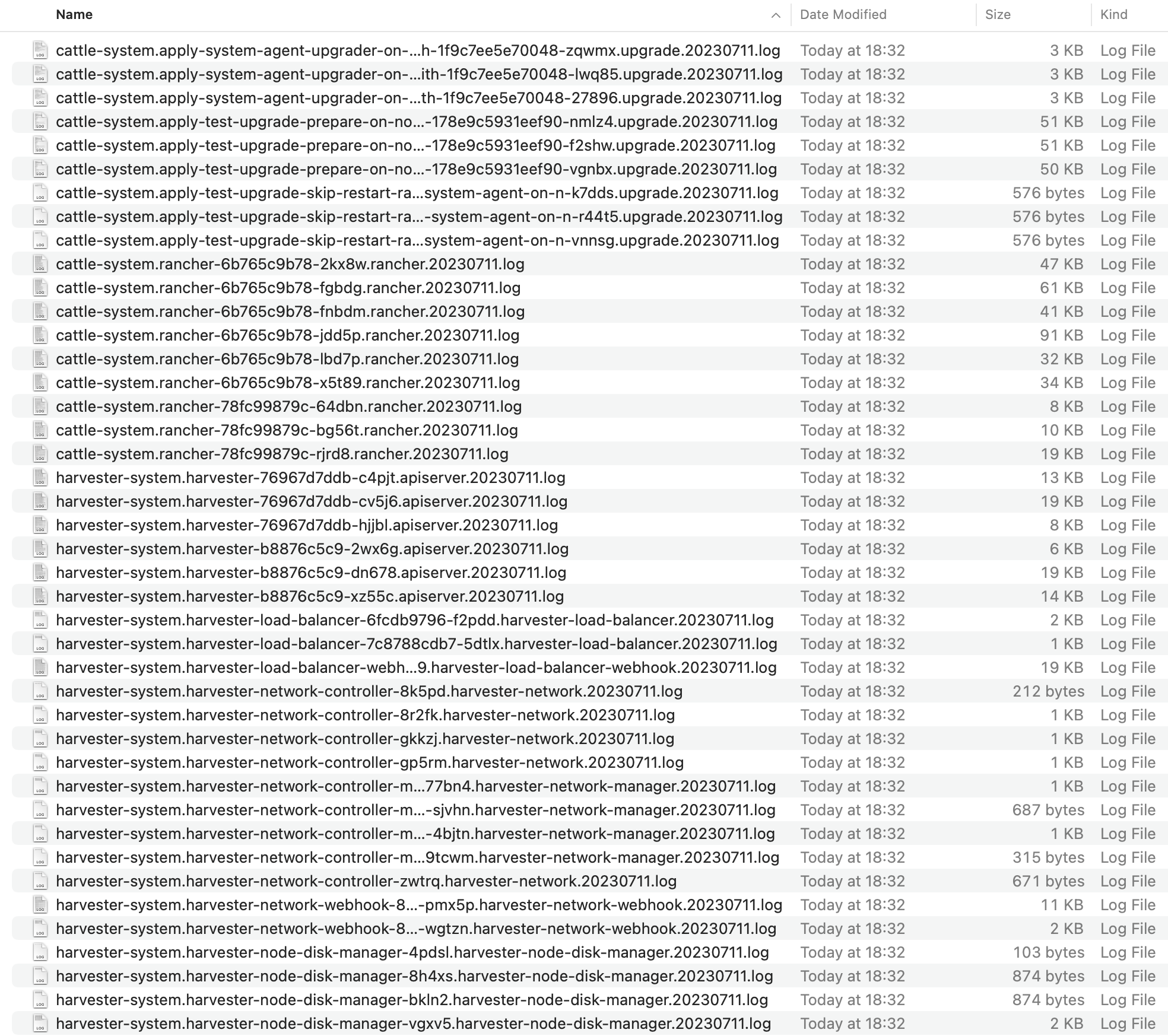
Log entries will be collected as files for each upgrade-related Pod, even for intermediate Pods. The support bundle provides a snapshot of the current state of the cluster, including logs and resource manifests, while the upgrade log preserves any logs generated during an upgrade. By combining these two, you can further investigate the issues during upgrades.
After the upgrade ends, Harvester stops collecting the upgrade logs to avoid occupying the disk space. In addition, you can click the Dismiss it button to purge the upgrade logs.
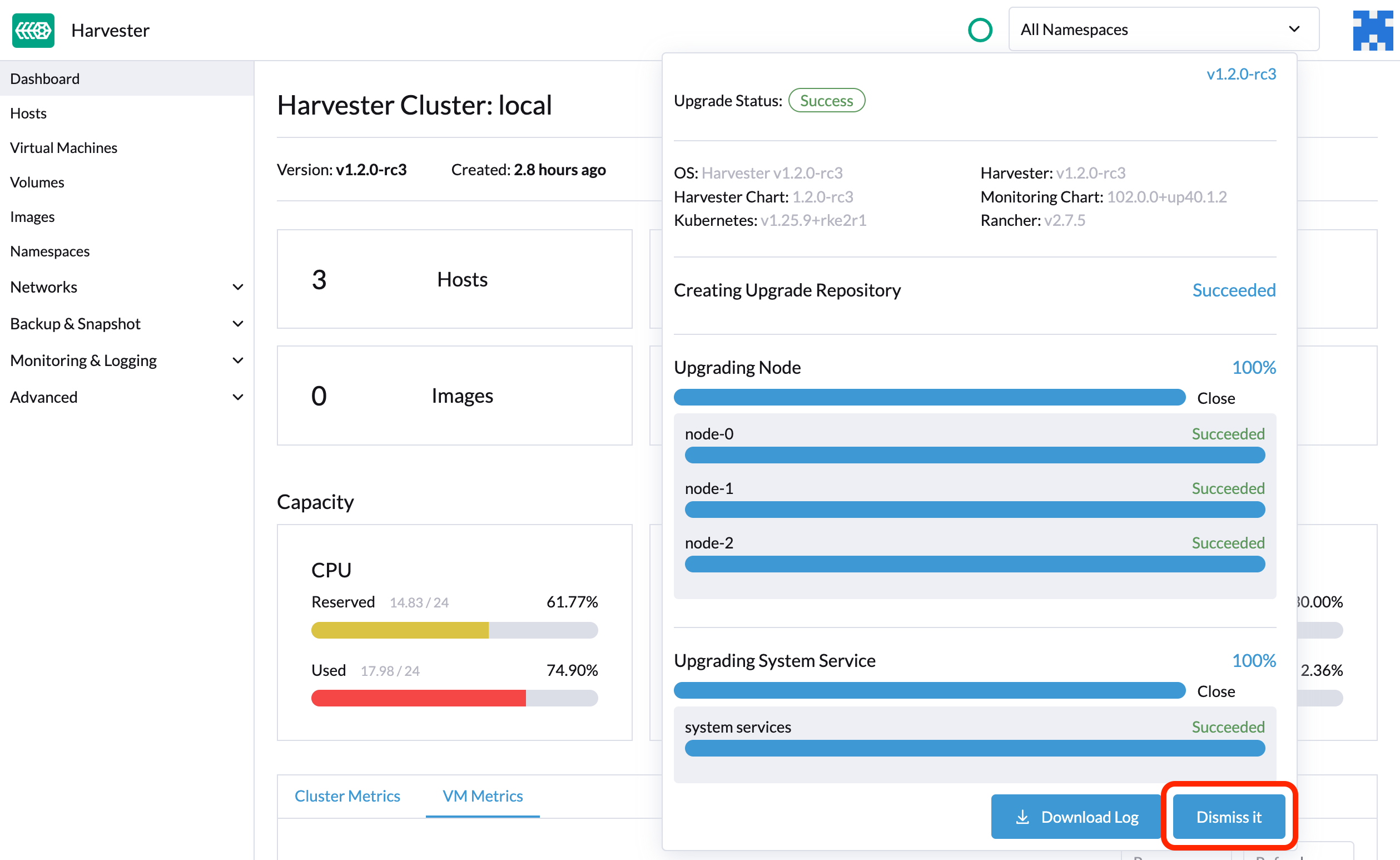
The upgradelog-downloader deployment and log archive volume are intentionally kept running in the cluster after an upgrade, regardless of the upgrade result. This guarantees you have persistent access to the logs.
However, these components continue to consume cluster resources and may block certain operations, such as updating storage network settings (see issue #9599).
To free up resources and unblock operations, perform either of the following actions:
- Click the Dismiss it button on the Harvester UI.
- Delete the associated
UpgradeLogcustom resource via kubectl.
For more details, please refer to the upgrade log HEP.
The default size of the volume that stores upgrade-related logs is 1 GB. When errors occur, these logs may completely consume the volume's available space. To work around this issue, you can perform the following steps:
-
Detach the
log-archivevolume by scaling down thefluentdStatefulSet anddownloaderdeployment.# Locate the StatefulSet and Deployment
$ kubectl -n harvester-system get statefulsets -l harvesterhci.io/upgradeLogComponent=aggregator
NAME READY AGE
hvst-upgrade-xxxxx-upgradelog-infra-fluentd 1/1 43s
$ kubectl -n harvester-system get deployments -l harvesterhci.io/upgradeLogComponent=downloader
NAME READY UP-TO-DATE AVAILABLE AGE
hvst-upgrade-xxxxx-upgradelog-downloader 1/1 1 1 38s
# Scale down the resources to terminate any Pods using the volume
$ kubectl -n harvester-system scale statefulset hvst-upgrade-xxxxx-upgradelog-infra-fluentd --replicas=0
statefulset.apps/hvst-upgrade-xxxxx-upgradelog-infra-fluentd scaled
$ kubectl -n harvester-system scale deployment hvst-upgrade-xxxxx-upgradelog-downloader --replicas=0
deployment.apps/hvst-upgrade-xxxxx-upgradelog-downloader scaled -
Expand the volume size using the Longhorn UI.
# Here's how to find out the actual name of the target volume
$ kubectl -n harvester-system get pvc -l harvesterhci.io/upgradeLogComponent=log-archive -o jsonpath='{.items[].spec.volumeName}'
pvc-63355afb-ce61-46c4-8781-377cf962278a
For more information, see Volume Expansion in the Longhorn documentation.
-
Recover the
fluentdStatefulSet anddownloaderdeployment.$ kubectl -n harvester-system scale statefulset hvst-upgrade-xxxxx-upgradelog-infra-fluentd --replicas=1
statefulset.apps/hvst-upgrade-xxxxx-upgradelog-infra-fluentd scaled
$ kubectl -n harvester-system scale deployment hvst-upgrade-xxxxx-upgradelog-downloader --replicas=1
deployment.apps/hvst-upgrade-xxxxx-upgradelog-downloader scaled
Clean Up Unused Images
The default value of imageGCHighThresholdPercent in KubeletConfiguration is 85. When disk usage exceeds 85%, the kubelet attempts to remove unused images.
New images are loaded to each Harvester node during upgrades. When disk usage exceeds 85%, these new images may be marked for cleanup because they are not used by any containers. In air-gapped environments, removal of new images from the cluster may break the upgrade process.
If you encounter the error message Node xxx will reach xx.xx% storage space after loading new images. It's higher than kubelet image garbage collection threshold 85%., run crictl rmi --prune to clean up unused images before starting a new upgrade.
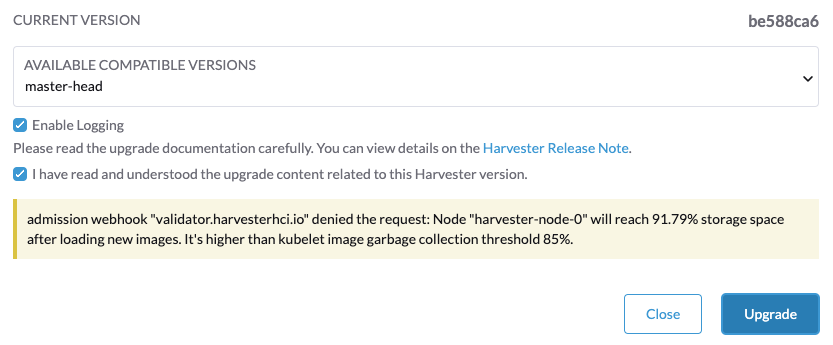
Harvester includes both automated and manual methods to reclaim disk space by removing unused container images.
Automatic Image Cleanup on Upgrade
During the final stage of an upgrade, Harvester triggers an automatic cleanup to remove image differences between the previous and current versions.
Manual Image Cleanup
For scenarios where you need to perform maintenance manually, use the v2 cleanup script. This script is registry-agnostic and supports air-gapped environments. The legacy script is also available.
V2 Script Usage & Options
The v2 cleanup script supports the following options. Use the --version flag to specify the current Harvester version of your cluster; the script automatically handles legacy image identification and cleans up all dangling ("ghost") or untagged images. It also reports the total number of images removed and provides a comparison of disk usage before and after the operation.
The script is designed to be conservative; it respects underlying CRI limitations and tolerates individual removal failures—for instance, if an image is in use, pinned, or already removed from the node—rather than force-deleting it. Furthermore, it deletes images based on the specific tags provided in the input file rather than by their hash ID (except for dangling images, which are identified and removed by ID). This ensures that if an image has multiple tags, the script only removes the specified tag, preventing accidental impact on other shared references. This design ensures safety even if an incorrect version is specified (e.g., running it on a v1.7.0 Harvester cluster with the --version v1.8.0 flag), as the script will protect images that are still in use.
./harv-purge-images-v2.sh
Error: Missing current cluster version (--version)
Usage: ./harv-purge-images-v2.sh --version <v1.x.x> [options]
Options:
  --version <v1.x.x>     REQUIRED: The current Harvester version of your cluster
  --download-only        Download official lists for BOTH amd64 and arm64 and exit
  --dry-run              Simulate removal and show targets (STRONGLY RECOMMENDED)
  --debug                Show detailed JSON snapshots and logic logs
  --images-list <path>   Path to a local file or URL. Use this to provide your
                         edited list containing third-party image tags.
  -h, --help             Show this help menu
Common Workflow
- Download the script to your node:
curl https://raw.githubusercontent.com/harvester/upgrade-helpers/refs/heads/main/bin/harv-purge-images-v2.sh -o harv-purge-images-v2.sh
chmod +x ./harv-purge-images-v2.sh
- Perform a dry-run, then execute the cleanup:
# 1. Dry-run (Always run this first)
./harv-purge-images-v2.sh --version <current_cluster_version> --dry-run

# 2. Actual Cleanup
./harv-purge-images-v2.sh --version <current_cluster_version>
The sample output:
./harv-purge-images-v2.sh --version v1.8.0 --dry-run
Parameters accepted:
  Cluster Version: v1.8.0
  Dry Run:         true
  Debug:           false
  Images List:     https://raw.githubusercontent.com/harvester/upgrade-helpers/refs/heads/main/manifests/image-lists/lists/v1.8.0-amd64-images-list.txt
 [INFO] Fetching remote list: https://raw.githubusercontent.com/harvester/upgrade-helpers/refs/heads/main/manifests/image-lists/lists/v1.8.0-amd64-images-list.txt...
>>> IMAGE CLEANUP START
>>> Analyzing system images ...
  [DRY-RUN] Would remove: docker.io/rancher/harvester:v1.4.0 (sha256:d9fd8e5c1561efc36a615751ae20541a548338578df5396b9ee4c1d649b927b9)
  [DRY-RUN] Would remove: docker.io/rancher/fleet-agent:v0.12.0 (sha256:ec813929d62b5fe5de54316e15723d1b8d9b5f32fe67447f7ab1173e697898f6)

[DRY-RUN] Found 2 unique images to purge.

>>> IMAGE CLEANUP FINISHED


./harv-purge-images-v2.sh --version v1.8.0
Parameters accepted:
  Cluster Version: v1.8.0
  Dry Run:         false
  Debug:           false
  Images List:     https://raw.githubusercontent.com/harvester/upgrade-helpers/refs/heads/main/manifests/image-lists/lists/v1.8.0-amd64-images-list.txt
 [INFO] Fetching remote list: https://raw.githubusercontent.com/harvester/upgrade-helpers/refs/heads/main/manifests/image-lists/lists/v1.8.0-amd64-images-list.txt...
>>> IMAGE CLEANUP START
--- Disk Usage: BEFORE ---
Filesystem      Size  Used Avail Use% Mounted on
/dev/vda5       147G   41G   99G  30% /usr/local
>>> Analyzing system images ...
  [TARGET] docker.io/rancher/harvester:v1.4.0 (sha256:d9fd8e5c1561efc36a615751ae20541a548338578df5396b9ee4c1d649b927b9)
  [TARGET] docker.io/rancher/fleet-agent:v0.12.0 (sha256:ec813929d62b5fe5de54316e15723d1b8d9b5f32fe67447f7ab1173e697898f6)

[ACTION] Removing 2 images...

--- Disk Usage: AFTER ---
Filesystem      Size  Used Avail Use% Mounted on
/dev/vda5       147G   41G  100G  29% /usr/local
----------------------------------------------
RECLAIMED SPACE: 548 MB
----------------------------------------------
>>> IMAGE CLEANUP FINISHED
Air-Gapped Environment Workflow
The following commands assume the cluster is running Harvester v1.8.0.
Suppose there is a proxy workstation which can connect to the internet.
-
Prepare the Proxy: Download the script and then use the script to download the official image lists.
curl https://raw.githubusercontent.com/harvester/upgrade-helpers/refs/heads/main/bin/harv-purge-images-v2.sh -o harv-purge-images-v2.sh
chmod +x ./harv-purge-images-v2.sh
./harv-purge-images-v2.sh --version v1.8.0 --download-only

[INFO] Downloading official manifests for Version: v1.8.0...
 [SAVED] ./v1.8.0-amd64-images-list.txt
[SAVED] ./v1.8.0-arm64-images-list.txt -
Verify Lists: The process downloads
v1.8.0-amd64-images-list.txtandv1.8.0-arm64-images-list.txt.- Tip: If you have third-party images that should also be removed, append them to the appropriate list file.
- Tip: If you wish to preserve specific images, remove their entries from the list file before proceeding.
-
Transfer to Harvester nodes: Transfer the script and the relevant architecture list file to each target air-gapped Harvester node.
-
Execute on Target: The script runs using the locally prepared image list.
# 1. Dry-run (Always run this first)
./harv-purge-images-v2.sh --version v1.8.0 --dry-run --images-list ./v1.8.0-amd64-images-list.txt

# 2. Actual Cleanup
./harv-purge-images-v2.sh --version v1.8.0 --images-list ./v1.8.0-amd64-images-list.txt
The sample output:
./harv-purge-images-v2.sh --version v1.8.0 --dry-run --images-list ./v1.8.0-amd64-images-list.txt
Parameters accepted:
  Cluster Version: v1.8.0
  Dry Run:         true
  Debug:           false
  Images List:     ./v1.8.0-amd64-images-list.txt
>>> IMAGE CLEANUP START
>>> Analyzing system images ...
  [DRY-RUN] Would remove: docker.io/rancher/mirrored-ingress-nginx-kube-webhook-certgen:v1.4.1 (sha256:684c5ea3b61b299cd4e713c10bfd8989341da91f6175e2e6e502869c0781fb66)
  [DRY-RUN] Would remove: docker.io/rancher/harvester-network-controller:v0.4.0 (sha256:b4aa17f3b8e20edf7ca6b6095e9520eabea5ca16fabfe1255112cd9dfc0804d2)
  [DRY-RUN] Would remove: docker.io/rancher/harvester-network-controller:v0.3.6 (sha256:e92474d956e2776e51b8cd0c3b1fe4ede69fe9f6b110c7ff4ec34143d8b1e5b0)

[DRY-RUN] Found 3 unique images to purge.

>>> IMAGE CLEANUP FINISHED
./harv-purge-images-v2.sh --version v1.8.0 --images-list ./v1.8.0-amd64-images-list.txt
Parameters accepted:
  Cluster Version: v1.8.0
  Dry Run:         false
  Debug:           false
  Images List:     ./v1.8.0-amd64-images-list.txt
>>> IMAGE CLEANUP START
--- Disk Usage: BEFORE ---
Filesystem      Size  Used Avail Use% Mounted on
/dev/vda5       147G   41G   99G  30% /usr/local
>>> Analyzing system images ...
  [TARGET] docker.io/rancher/mirrored-ingress-nginx-kube-webhook-certgen:v1.4.1 (sha256:684c5ea3b61b299cd4e713c10bfd8989341da91f6175e2e6e502869c0781fb66)
  [TARGET] docker.io/rancher/harvester-network-controller:v0.4.0 (sha256:b4aa17f3b8e20edf7ca6b6095e9520eabea5ca16fabfe1255112cd9dfc0804d2)
  [TARGET] docker.io/rancher/harvester-network-controller:v0.3.6 (sha256:e92474d956e2776e51b8cd0c3b1fe4ede69fe9f6b110c7ff4ec34143d8b1e5b0)

[ACTION] Removing 3 images...

--- Disk Usage: AFTER ---
Filesystem      Size  Used Avail Use% Mounted on
/dev/vda5       147G   41G  100G  29% /usr/local
----------------------------------------------
RECLAIMED SPACE: 620 MB
----------------------------------------------
>>> IMAGE CLEANUP FINISHED
Check the Status of a Stuck Upgrade
If the upgrade becomes stuck and the Harvester UI does not display any error messages, perform the following steps:
-
Check the pods that were created during the upgrade process using the command
kubectl get pods -n harvester-system | grep upgrade.The main script is in the
hvst-upgrade-xxxxx-apply-manifests-xxxxxpod. If the log records include the following messages, themanagedChartCR might be causing issues.Current version: x.x.x, Current state: WaitApplied, Current generation: x
Sleep for 5 seconds to retry -
Retrieve information about the
bundleCR using the commandkubectl get bundles -A.Example:
NAMESPACE     NAME                                          BUNDLEDEPLOYMENTS-READY   STATUS
fleet-local   fleet-agent-local                             1/1
fleet-local   local-managed-system-agent                    1/1
fleet-local   mcc-harvester                                 0/1                       Modified(1) [Cluster fleet-local/local]; kubevirt.kubevirt.io harvester-system/kubevirt modified {"spec":{"configuration":{"vmStateStorageClass":"vmstate-persistence"}}}
fleet-local   mcc-harvester-crd                             1/1
fleet-local   mcc-local-managed-system-upgrade-controller   1/1
fleet-local   mcc-rancher-logging-crd                       1/1
fleet-local   mcc-rancher-monitoring-crd                    1/1