Rancher
Guest Cluster Log Collection
You can collect guest cluster logs and configuration files. Perform the following steps on each guest cluster node:
-
Log in to the node.
-
Download the Rancher v2.x Linux log collector script and generate a log bundle using the following commands:
curl -OLs https://raw.githubusercontent.com/rancherlabs/support-tools/master/collection/rancher/v2.x/logs-collector/rancher2_logs_collector.sh
sudo bash rancher2_logs_collector.sh
The output of the script indicates the location of the generated tarball.
For more information, see The Rancher v2.x Linux log collector script.
Importing of Harvester Clusters into Rancher
After the cluster-registration-url is set on Harvester, a deployment named cattle-system/cattle-cluster-agent is created for importing of the Harvester cluster into Rancher.
Import Pending Due to unable to read CA file Error
The following error messages in the cattle-cluster-agent-* pod logs indicate that the Harvester cluster cannot be imported into Rancher.
2025-02-13T17:25:22.520593546Z time="2025-02-13T17:25:22Z" level=info msg="Rancher agent version v2.10.2 is starting"
2025-02-13T17:25:22.529886868Z time="2025-02-13T17:25:22Z" level=error msg="unable to read CA file from /etc/kubernetes/ssl/certs/serverca: open /etc/kubernetes/ssl/certs/serverca: no such file or directory"
2025-02-13T17:25:22.529924542Z time="2025-02-13T17:25:22Z" level=error msg="Strict CA verification is enabled but encountered error finding root CA"
The root cause is that the agent-tls-mode is not effectively configured.
Rancher's agent-tls-mode setting controls how Rancher's agents (cluster-agent, fleet-agent, and system-agent) validate Rancher's certificate when establishing a connection. You can set either of the following values:
-
strict: Rancher's agents only trust certificates generated by the Certificate Authority (CA) specified in thecacertssetting. This is the recommended default TLS setting that guarantees a higher level of security.The
strictoption enables a higher level of security, it requires Rancher to have access to the CA which generated the certificate visible to the agents. In the case of certain certificate configurations (notably, external certificates), this is not automatic, and extra configuration is needed. See the installation guide for more information on which scenarios require extra configuration. -
system-store: Rancher's agents trust any certificate generated by a public Certificate Authority specified in the operating system's trust store. Use this setting if your setup uses an external trust authority and you don't have ownership over the Certificate Authority.importantUsing the
system-storesetting implies that the agent trusts all external authorities found in the operating system's trust store including those outside of the user's control.
The default value of this setting depends on the Rancher version and installation type. For more information, see Rancher issue #45628.
| Type | Versions | Default Value |
|---|---|---|
| New installation | v2.8 | system-store |
| New installation | v2.9 and later | strict |
| Upgrade | v2.8 to v2.9 | system-store |
Follow the steps below to configure the different TLS setting options.
-
Log in to the Rancher UI.
-
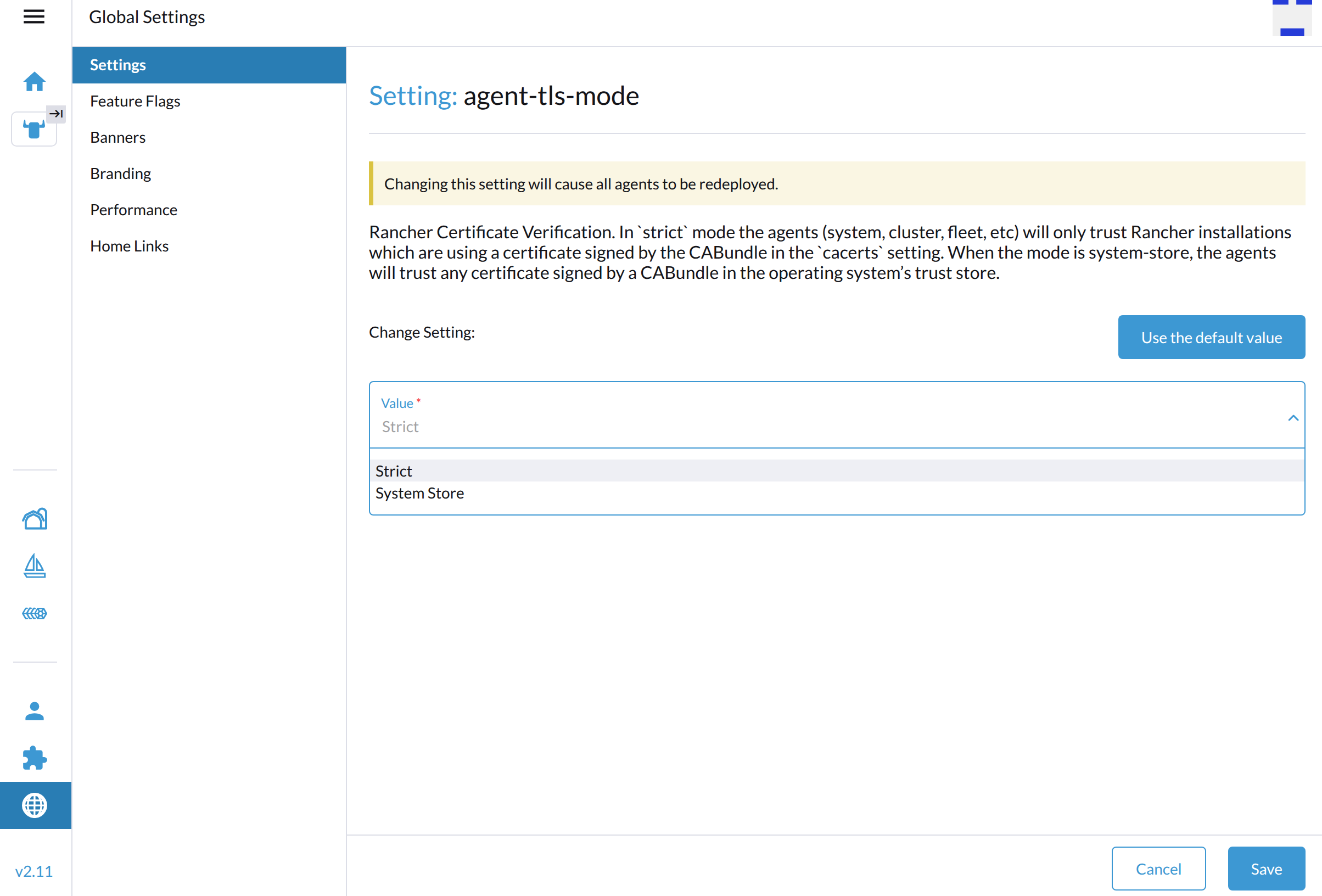
Go to Global Settings > Settings.
-
Select agent-tls-mode, and then select ⋮ > Edit Setting to access the configuration options.
-
Set Value to System Store or Strict.
-
Click Save.
Related issues:
Guest Cluster Loadbalancer IP is not reachable
Issue Description
-
Create a new guest cluster with the default
Container Network: Calicoand the defaultCloud Provider: Harvester. -
Deploy
nginxon this new guest cluster via commandkubectl apply -f https://k8s.io/examples/application/deployment.yaml. -
Create a Load Balancer, which selects backend nginx.
-
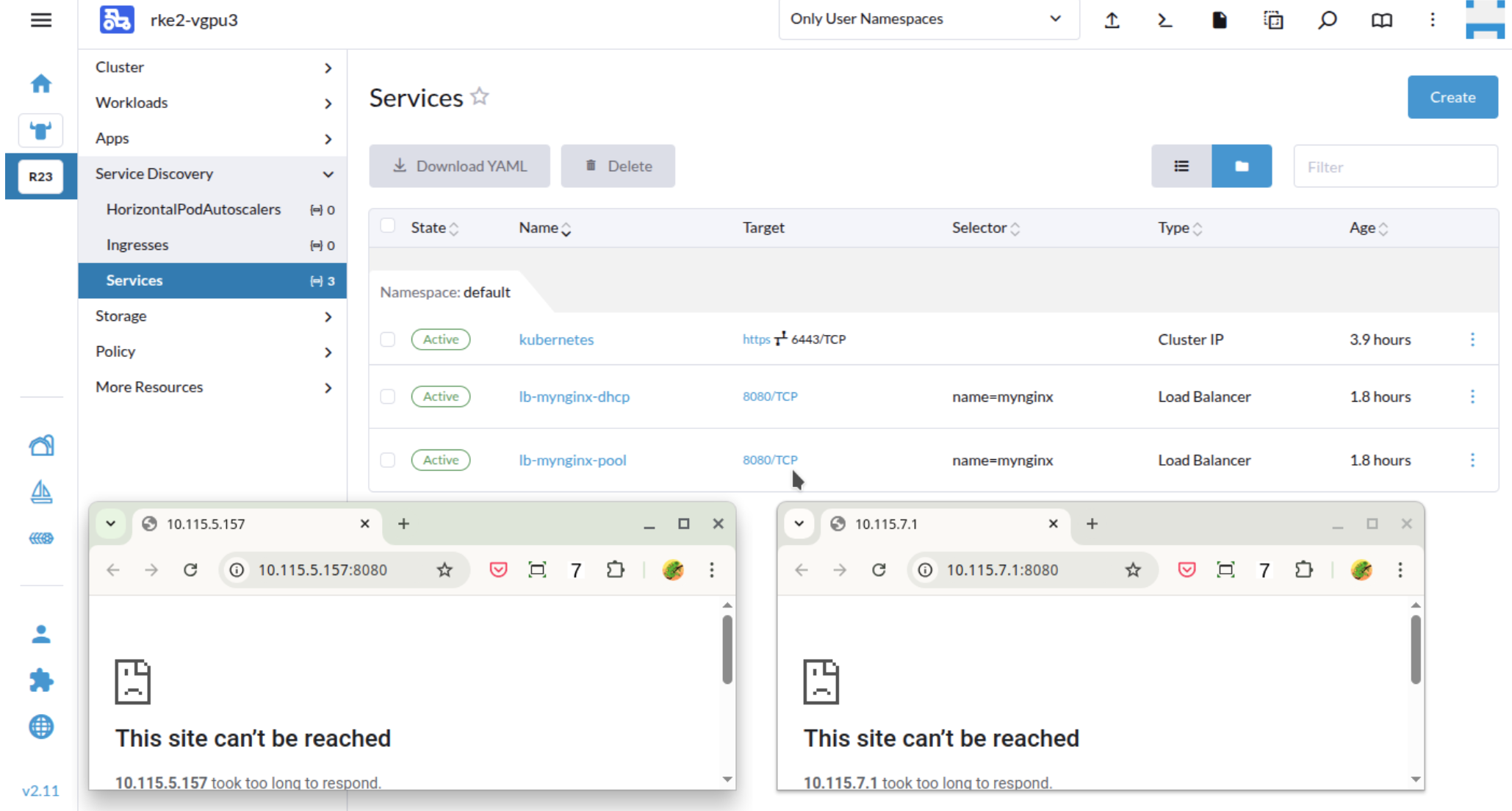
The service is ready with allocated IP from DHCP server or IPPool, but when clicking the link the page might fail to show.
Root Cause
In below example, the guest cluster node(Harvester VM)'s IP is 10.115.1.46, and later a new Loadbalancer IP 10.115.6.200 is added to a new interface like vip-fd8c28ce (@enp1s0). However, the Loadbalancer IP is taken over by the calio controller. It caused the Loadbalancer IP is not reachable. Through a shell session using the original IP run the following.
$ ip -d link show dev vxlan.calico
44: vxlan.calico: <BROADCAST,MULTICAST,UP,LOWER_UP> mtu 1450 qdisc noqueue state UNKNOWN mode DEFAULT group default qlen 1000
    link/ether 66:a7:41:00:1d:ba brd ff:ff:ff:ff:ff:ff promiscuity 0  allmulti 0 minmtu 68 maxmtu 65535
info: Using default fan map value (33)
    vxlan id 4096 local 10.115.6.200 dev vip-8a928fa0 srcport 0 0 dstport 4789 nolearning ttl auto ageing 300 udpcsum noudp6zerocsumtx noudp6zerocsumrx addrgenmode eui64 numtxqueues 1 numrxqueues 1 gso_max_size 65536 gso_max_segs 65535 tso_max_size 65536 tso_max_segs 65535 gro_max_size 65536

The IP 10.115.6.200 is from the vip-* interface.
Affected versions
From Calico v3.22 or even earlier version, the IP autodetection was available, and the first-found was the default value.
SUSE RKE2 version v1.29 has Calico v3.29.2. version v1.35 has Calico v3.31.2.
It means: for most recent RKE2 clusters when they use Calico as the default CNI, and use Harvester-cloud-provider to offer loadbalancer type services, they might suffer this issue.
Workaround
For newly created cluster
When creating new clusters on Rancher Manager, click Add-on: Calico, YAML configuration window will appear. Add following two lines to .installation.calicoNetwork.
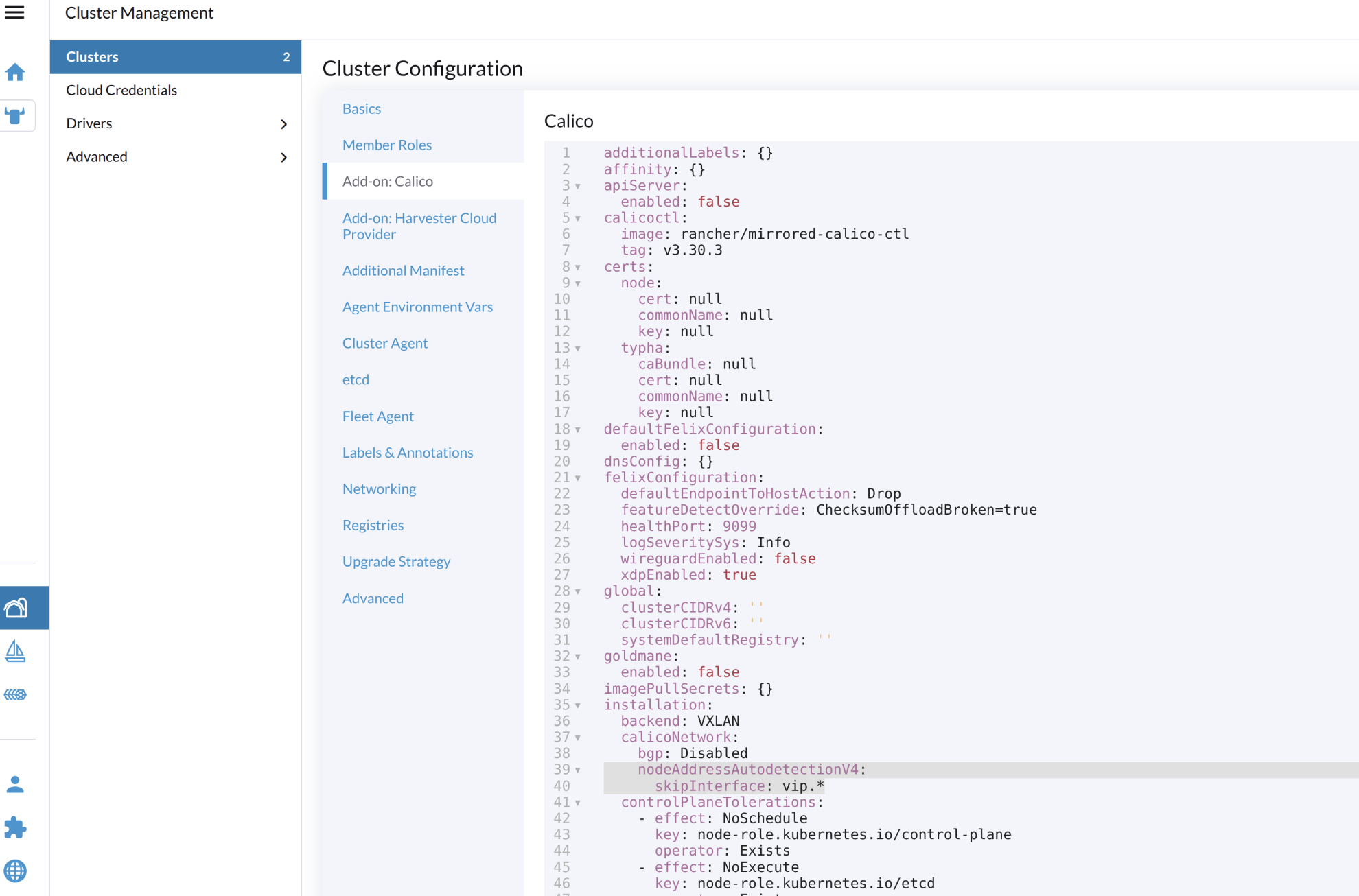
installation:
  backend: VXLAN
  calicoNetwork:
    bgp: Disabled
    nodeAddressAutodetectionV4:  // add this line
      skipInterface: vip.*       // add this line
The calico controller won't take over the Loadbalancer IP accidentally.
For existing clusters
Run kubectl command $ kubectl edit installation, go to section .spec.calicoNetwork.nodeAddressAutodetectionV4, remove any existing line like firstFound: true, add new line skipInterface: vip.* and save.
Wait 2 minutes, the daemonset calico-system/calico-node is rolling updated and then the related PODs take the node IP for VXLAN to use.
Run following command to check the vxlan.calico interface, if it takes the node IP like 10.115.1.46, not the VIP.
$  ip -d link show dev vxlan.calico

45: vxlan.calico: <BROADCAST,MULTICAST,UP,LOWER_UP> mtu 1450 qdisc noqueue state UNKNOWN mode DEFAULT group default qlen 1000
    link/ether 66:a7:41:00:1d:ba brd ff:ff:ff:ff:ff:ff promiscuity 0  allmulti 0 minmtu 68 maxmtu 65535
info: Using default fan map value (33)
    vxlan id 4096 local 10.115.1.46 dev enp1s0 srcport 0 0 dstport 4789 nolearning ttl auto ageing 300 udpcsum noudp6zerocsumtx noudp6zerocsumrx addrgenmode eui64 numtxqueues 1 numrxqueues 1 gso_max_size 65536 gso_max_segs 65535 tso_max_size 65536 tso_max_segs 65535 gro_max_size 65536
If it still uses the VIP, then check the tigera-operator pod log to see if there is key word failed calling webhook.
$ kubectl -n tigera-operator logs tigera-operator-8566d6db5c-wfjkt
...
{"level":"error","ts":"2025-12-18T09:06:37Z","msg":"Reconciler error","controller":"tigera-installation-controller","object":{"name":"periodic-5m0s-reconcile-event"},"namespace":"","name":"periodic-5m0s-reconcile-event","reconcileID":"bae9d2da-a4bf-4d8b-89b8-c8a23a96f351","error":"Internal error occurred: failed calling webhook \"rancher.cattle.io.namespaces\": failed to call webhook: Post \"https://rancher-webhook.cattle-system.svc:443/v1/webhook/validation/namespaces?timeout=10s\": context deadline exceeded"...}
In case it happens, then update the calico-system/calico-node daemonset to add following container parameters directly.
            - name: IP_AUTODETECTION_METHOD
              value: skip-interface=vip.*
Wait 2 minutes and check the aforementioned vxlan.calico interface again, when VIP is not taken over by it, VIP will continue to be reachable.
Related Issue
Guest Cluster Provisioning is Stuck at waiting for cluster agent to connect
Issue Description
-
Import Harvester into Rancher Manager.
-
Create a new guest cluster via node driver
Harvesterwith the defaultCloud Provider: Harvester. -
Rancher UI shows the new cluster is
Updatingwith information...waiting for cluster agent to connect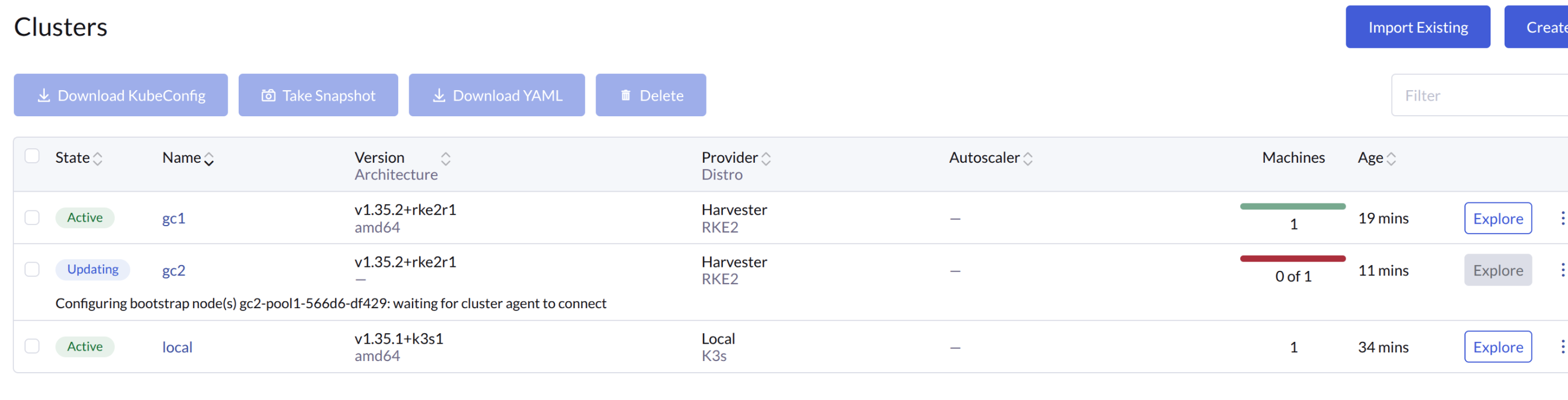
-
Check the running pods:
$ kubectl get pods -A

NAMESPACE         NAME                                                     READY   STATUS             RESTARTS         AGE
calico-system     calico-kube-controllers-76456b5c58-xgzmn                 0/1     Pending            0                29m
calico-system     calico-node-n6ptz                                        0/1     Running            0                29m
calico-system     calico-typha-5b6744bd87-vfzpm                            0/1     Pending            0                29m
cattle-system     cattle-cluster-agent-66f658c49f-mm4xr                    0/1     Pending            0                29m
kube-system       etcd-rke2-v1352-7-pool1-wf5n2-8ng58                      1/1     Running            0                30m
kube-system       helm-install-harvester-csi-driver-h8tqb                  0/1     CrashLoopBackOff   10 (3m24s ago)   29m
kube-system       helm-install-rke2-calico-5t6hj                           0/1     Completed          2                29m
kube-system       helm-install-rke2-calico-crd-spg62                       0/1     Completed          0                29m
kube-system       helm-install-rke2-coredns-nx5rl                          0/1     Completed          0                29m
kube-system       helm-install-rke2-metrics-server-tw8xj                   0/1     Pending            0                29m
kube-system       helm-install-rke2-runtimeclasses-csqgq                   0/1     Pending            0                29m
kube-system       helm-install-rke2-snapshot-controller-crd-dwkbt          0/1     Pending            0                29m
kube-system       helm-install-rke2-snapshot-controller-d2crg              0/1     Pending            0                29m
kube-system       helm-install-rke2-traefik-crd-bqb6g                      0/1     Pending            0                29m
kube-system       helm-install-rke2-traefik-fnjwg                          0/1     Pending            0                29m
kube-system       kube-apiserver-rke2-v1352-7-pool1-wf5n2-8ng58            1/1     Running            0                30m
kube-system       kube-controller-manager-rke2-v1352-7-pool1-wf5n2-8ng58   1/1     Running            0                30m
kube-system       kube-proxy-rke2-v1352-7-pool1-wf5n2-8ng58                1/1     Running            0                30m
kube-system       kube-scheduler-rke2-v1352-7-pool1-wf5n2-8ng58            1/1     Running            0                30m
kube-system       rke2-coredns-rke2-coredns-5d4dd4bdd9-5tcdm               0/1     Pending            0                29m
kube-system       rke2-coredns-rke2-coredns-autoscaler-67b9856946-m44cd    0/1     Pending            0                29m
tigera-operator   tigera-operator-6db5b6cfd8-gxhfv                         1/1     Running            0                29m
$ kubectl describe pod -n calico-system calico-typha-5b6744bd87-vfzpm
Events:
Type Reason Age From Message
---- ------ ---- ---- -------
Warning FailedScheduling 34m default-scheduler 0/1 nodes are available: 1 node(s) had untolerated taint(s). no new claims to deallocate, preemption: 0/1 nodes are available: 1 Preemption is not helpful for scheduling.
Warning FailedScheduling 9m12s (x5 over 29m) default-scheduler 0/1 nodes are available: 1 node(s) had untolerated taint(s). no new claims to deallocate, preemption: 0/1 nodes are available: 1 Preemption is not helpful for scheduling.noteThese pods are symptoms; the root cause is that the
nodeobject has not yet been correctly updated bycloud-provider. -
Check the
nodeobject:$ kubectl get node <node-name> -o yaml...
spec:
...
taints:
- effect: NoSchedule
key: node.cloudprovider.kubernetes.io/uninitialized
value: "true"noteWhen a cloud provider hasn't initialized a node, the node has a
node.cloudprovider.kubernetes.io/uninitialized:NoScheduletaint. -
Describe the job
helm-install-harvester-cloud-providerin namespacekube-system:$ kubectl describe job -n kube-system helm-install-harvester-cloud-provider
...
Name: helm-install-harvester-cloud-provider
Namespace: kube-system
...
Completion Mode: NonIndexed
Suspend: false
Backoff Limit: 1000
Start Time: Tue, 31 Mar 2026 12:49:15 +0000
Pods Statuses: 0 Active (0 Ready) / 0 Succeeded / 0 Failed
...The
harvester-cloud-providerjob appears stalled; all pod metrics (active, succeeded, and failed) remain at zero despite the job being started.
Root Cause
Due to a race condition during the RKE2 bootstrap stage, the helm-install-harvester-cloud-provider pod encountered a rapid create, delete, create loop. This caused the job-controller to become desynchronized, stalling the job and preventing the node object from being updated.
kube-system-kube-controller-manager log:
...
[job_controller.go:659] "Unhandled Error" err="syncing job: tracking status: adding uncounted pods to status:
Operation cannot be fulfilled on jobs.batch \"helm-install-harvester-cloud-provider\":
StorageError: invalid object, Code: 4, Key: /registry/jobs/kube-system/helm-install-harvester-cloud-provider,
ResourceVersion: 0, AdditionalErrorMsg: Precondition failed: UID in precondition: 6ae0b0b2-34c6-42e2-afc9-d7616ec93f2e,
  UID in object meta: 8515b052-3a07-43e8-bf01-d898e2b9c27c" logger="UnhandledError"
-
The UID mismatch in the StorageError indicates that the job object was recreated so quickly that the controller's internal state became inconsistent with the actual object in etcd.
-
An upstream fix for this race condition is currently being implemented & tested in
RKE2 & helm-controllerand will be available in upcoming releases.
Affected versions
Rancher Manager: v2.14.0
RKE2: v1.34.*, v1.35.1 through v1.35.3
Harvester: v1.8.0
High-Risk Configurations & Verification
The issue is most frequently observed on Rancher Manager v2.14.0, RKE2 v1.35.2/v1.35.3 and Harvester v1.8.0.
While these are the primary focus, the bug may potentially impact other versions as well. Verify whether the symptoms described above occur in your environment, and review the related issue linked below for additional details.
Resolution
This issue is resolved in RKE2 v1.35.4 and all subsequent releases.
-
RKE2
v1.35.4is available by default starting with Rancher Managerv2.14.1. Refer to the Rancher Manager documentation to upgrade the manager and its guest clusters. -
Harvester requires no changes or upgrades to resolve this issue.
Workaround
-
Manually delete the stuck job to allow the controller to recreate it.
$ kubectl delete job -n kube-system helm-install-harvester-cloud-provider
job.batch "helm-install-harvester-cloud-provider" deleted from kube-system namespace
Within a few minutes, a new job should be created. You can verify the nodes are being initialized by checking if the
uninitializedtaint is removed:$ kubectl get nodes -o jsonpath='{.items[*].spec.taints}'Once the job recreates and completes, the command should return an empty response (no taints), allowing the pending pods to schedule.
The guest cluster will recover automatically.
-
Reprovision the failed cluster.
Related Issue
Guest Cluster Load Balancer Allocates IP from Global Pool
When a load balancer operating in IP pool mode targets a specific network, it unexpectedly allocates an IP address from the global IP pool if no dedicated pool matches the target network.
Issue Description
In the following example, if an IP-pool-mode load balancer targets default/vlan-200, it selects an IP address from pool-100 because no dedicated pool exists for default/vlan-200.
| Type | Name | Details |
|---|---|---|
| VM network | default/vlan-100 | - |
| VM network | default/vlan-200 | - |
| VM network | default/vlan-300 | - |
| IP pool (global) | pool-100 | Intended for default/vlan-100, but its network field is empty |
| IP pool (dedicated) | pool-300 | Bound to default/vlan-300 |
Root Cause
In the current implementation, a global IP pool can have an empty network field, causing the controller to skip network matching during IP allocation.
-
Design rationale: This behavior simplifies cluster setup in single-pool deployments, allowing a primary global IP pool to serve guest clusters without being tied to specific VM networks.
-
Selection behavior: During automatic IP pool selection, the controller does not verify whether the global IP pool matches the target network requested by the load balancer. As a result, the controller selects the global pool whenever no dedicated pool matches the target network.
-
Backward compatibility constraints: Strictly enforcing network matching on global IP pool would break backward compatibility for existing cluster deployments. Furthermore, because a global IP pool's
networkfield can be left empty, requiring a strict network match would prevent the creation of new load balancers targeting global IP pool.
Workaround
Select one of the following options to prevent unexpected global IP allocations:
-
Option 1: Avoid creating global IP pool.
Do not set all three Scope fields (
Project,Namespace, andGuest Kubernetes Cluster) toALL(*)when creating an IP pool. In multi-tenant environments, avoid global IP pool because they prevent proper resource isolation and tenant access control. -
Option 2: Create dedicated IP pools for guest cluster networks.
If you cannot modify or delete existing global IP pool, create a dedicated IP pool (or a placeholder pool) for every VM network used by guest clusters (for example,
pool-200). Binding a dedicated pool to each network ensures the controller selects the intended pool instead of selecting an unassigned global pool.
Expected result: The guest cluster load balancer will either allocate an IP address from the matching dedicated pool or fail explicitly with an error message such as no matching pool or no IP.
Related Issue
Guest Cluster LoadBalancer IP Leaks with Multiple Cloud Providers
Issue Description
When you delete a LoadBalancer service that uses IPPool mode in a guest cluster, the corresponding LoadBalancer object in the underlying Harvester cluster is not deleted, causing IP address leaks.
Root Cause
This issue occurs when kube-vip-cloud-controller is deployed alongside the Harvester Cloud Provider with its service-lb-controller enabled.
If a harvester-cloud-provider pod restarts while a LoadBalancer service is removed or recreated, the deletion event may bypass the provider and be acknowledged directly by kube-vip-cloud-controller. As a result, the Harvester Cloud Provider loses track of the LoadBalancer object and fails to clean it up.
Workaround
Ensure only one cloud controller manages LoadBalancer services in the guest cluster. To do this, perform either of the following actions:
-
Deploy only one
cloud-controller-managerin the cluster. -
Disable the
service-lb-controller(supported in Harvester Cloud Provider v0.2.12 and later) to avoid conflicts with third-party cloud controllers such askube-vip-cloud-controller.