Clone a Volume
How to Clone a Volume
After creating a volume, you can clone the volume by following the steps below:
-
Click the
⋮button and select theCloneoption.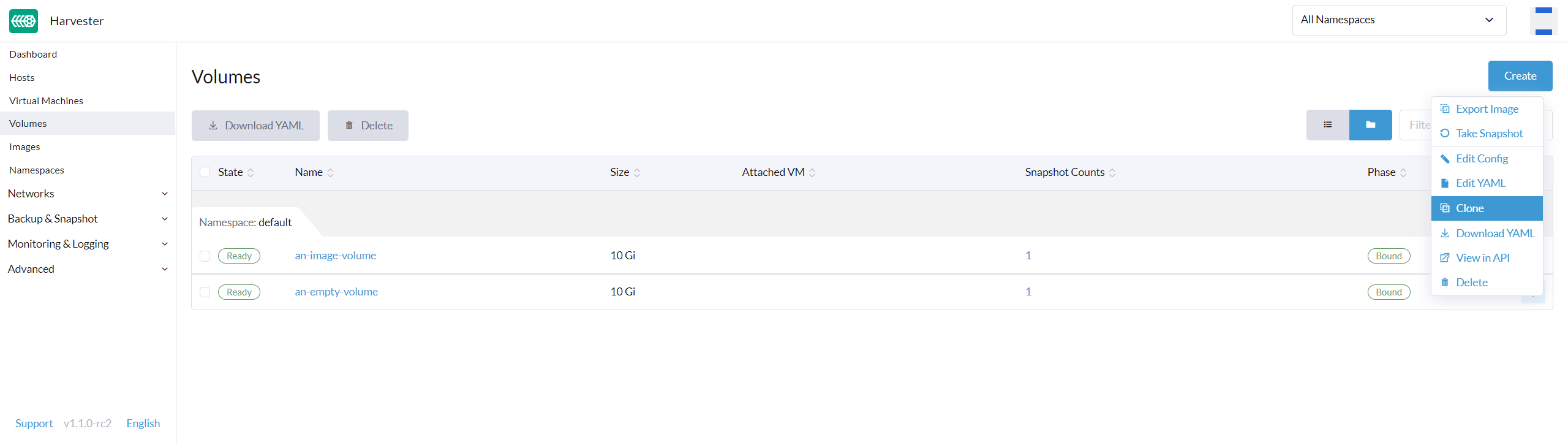
-
Select
clone volume data. -
Configure the
Nameof the new volume and clickCreate. -
(Optional) A cloned volume can be added to a VM using
Add Existing Volume.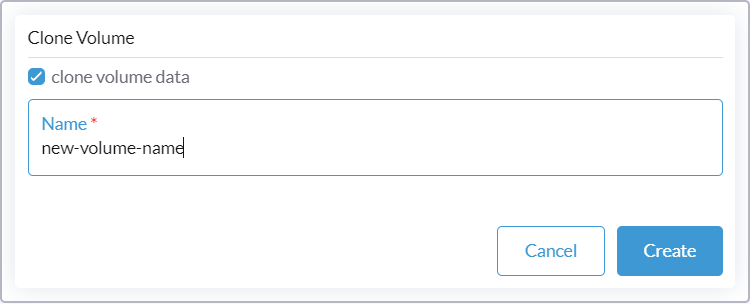
Replica Rebuilding for Detached Cloned Longhorn Volumes
When you clone a detached Longhorn volume in a multi-node cluster, Longhorn creates only one replica instead of the expected number (for example, three replicas in a three-node cluster). The displayed volume clone status is copy-completed-awaiting-healthy instead of complete.
Longhorn automatically rebuilds the remaining replicas after the cloned volume is attached to a virtual machine. However, you can start the replica rebuilding process immediately for the detached volume by performing either of the following actions:
-
On the Longhorn UI, manually attach the volume and wait for the replica rebuilding process to be completed.
-
Enable the Longhorn setting
offline-replica-rebuildingto allow automatic rebuilding of replicas for detached volumes.
This behavior applies exclusively to detached volumes. Longhorn automatically performs replica rebuilding for volumes that are attached to a running virtual machine.