Creating an K3s Kubernetes Cluster
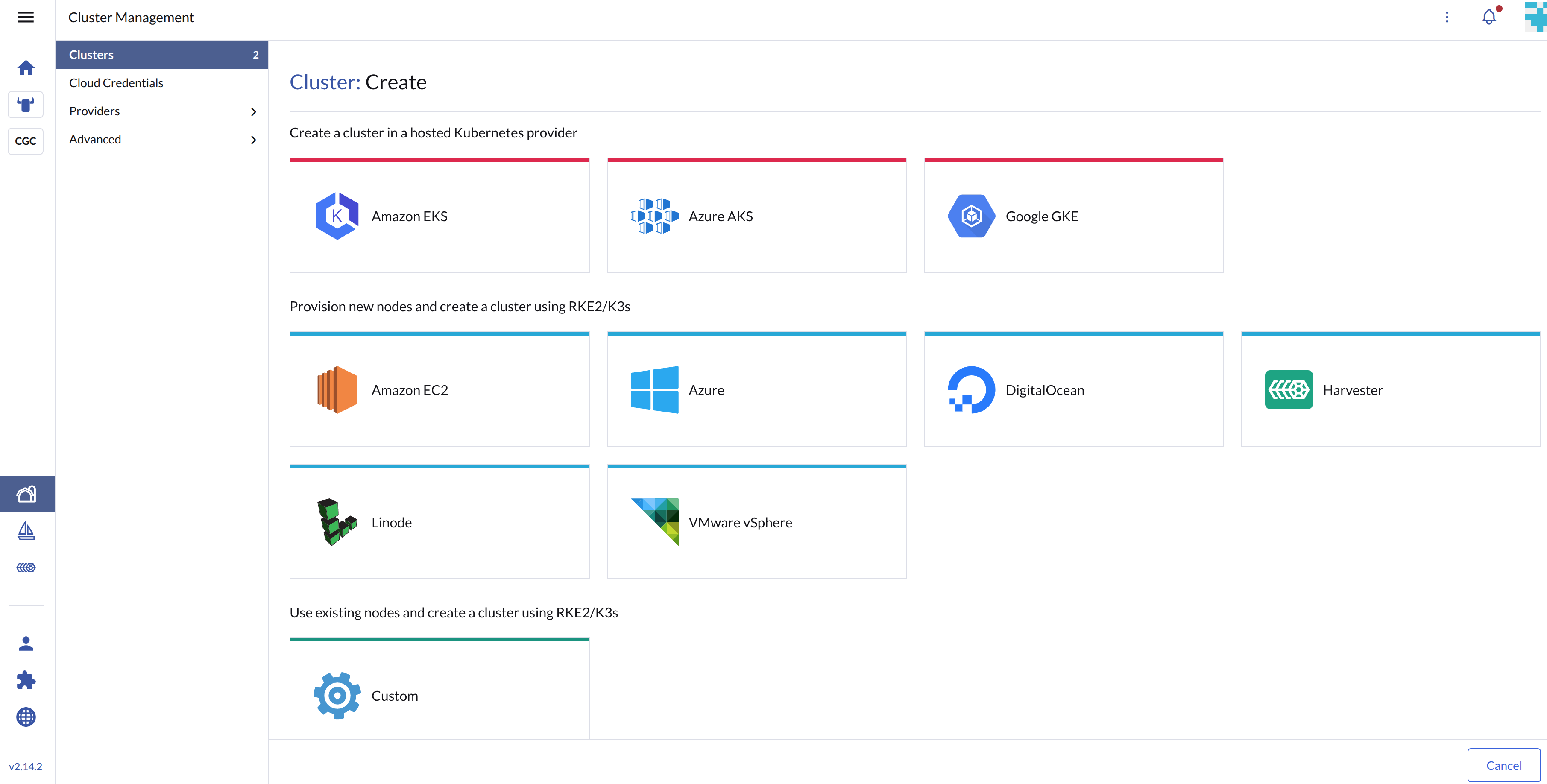
You can now Provision new nodes and create a cluster using RKE2/K3s on top of the Harvester cluster in Rancher using the built-in Harvester node driver.
- Harvester K3s node driver is in Tech Preview.
- Provisioning K3s Kubernetes clusters involves configuring the IP address of the underlying virtual machines. You can do this using a DHCP server on the VLAN network that the virtual machines are attached to. If such a server does not exist on the network, you can use the Managed DHCP feature to configure the IP address.
- VLAN network is required for Harvester node driver.
- Harvester node driver only supports cloud images.
- For the port requirements of the guest clusters deployed within Harvester, please refer to the port requirements for guest clusters.
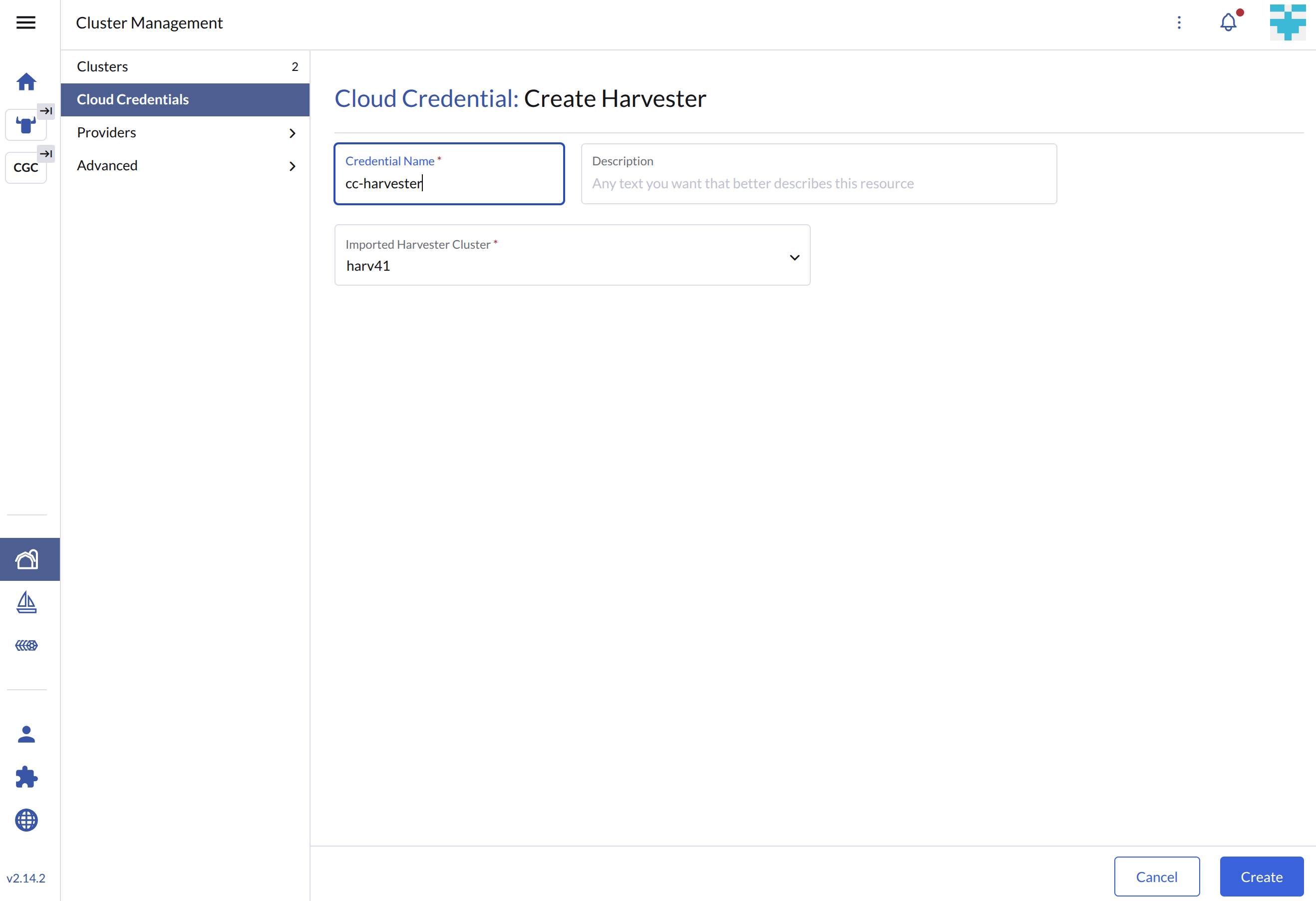
Create your cloud credentials
- Click ☰ > Cluster Management.
- Click Cloud Credentials.
- Click Create.
- Click Harvester.
- Enter your cloud credential name
- Select "Imported Harvester Cluster".
- Click Create.
Create K3s Kubernetes cluster
Users can create a K3s Kubernetes cluster from the Cluster Management page via the Harvester node driver.
- Select Clusters menu.
- Click Create button.
- Select Harvester node driver.
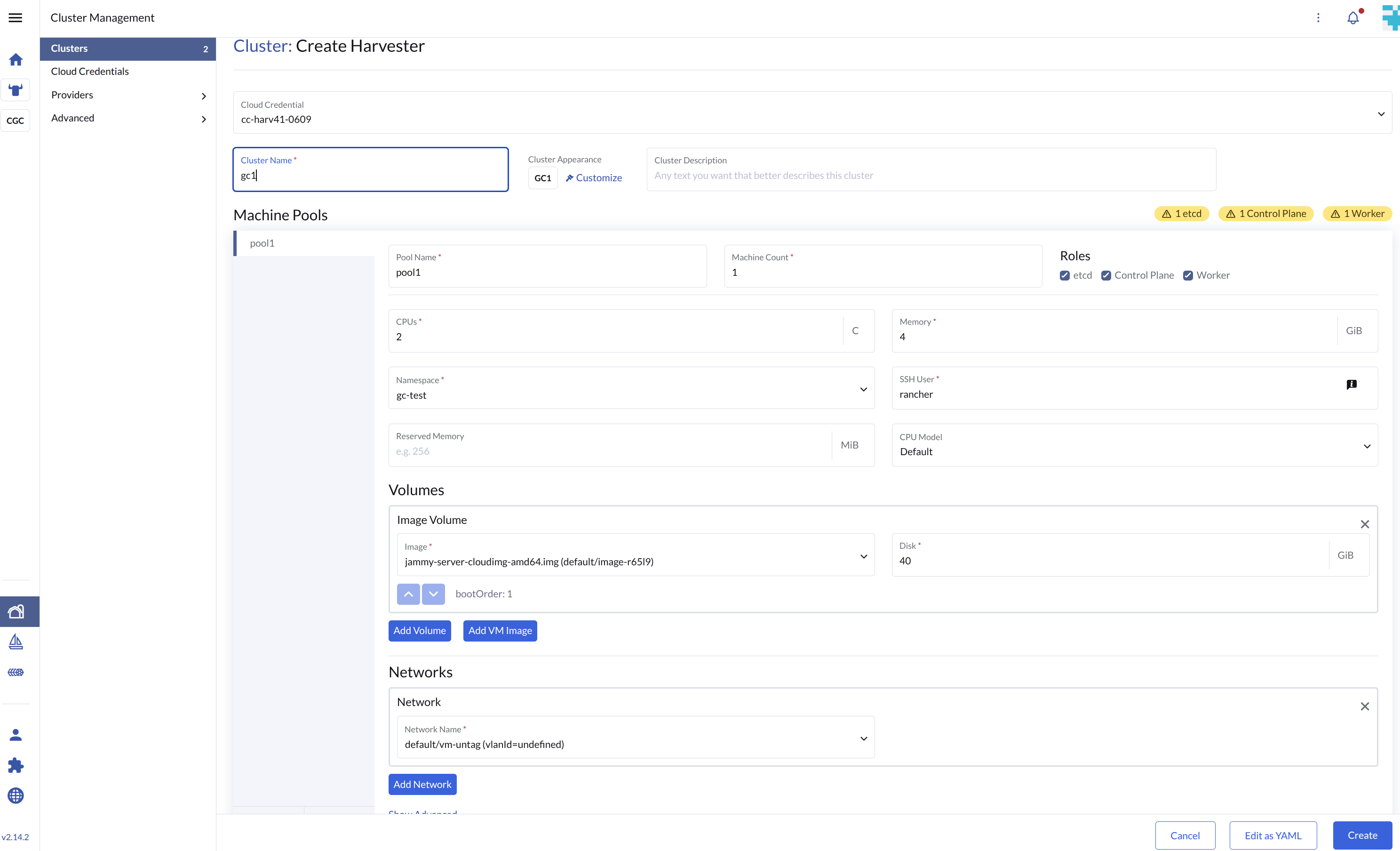
- Select a Cloud Credential.
- Enter Cluster Name (required).
- Enter Namespace (required).
- Enter Image (required).
- Enter Network Name (required).
- Enter SSH User (required).
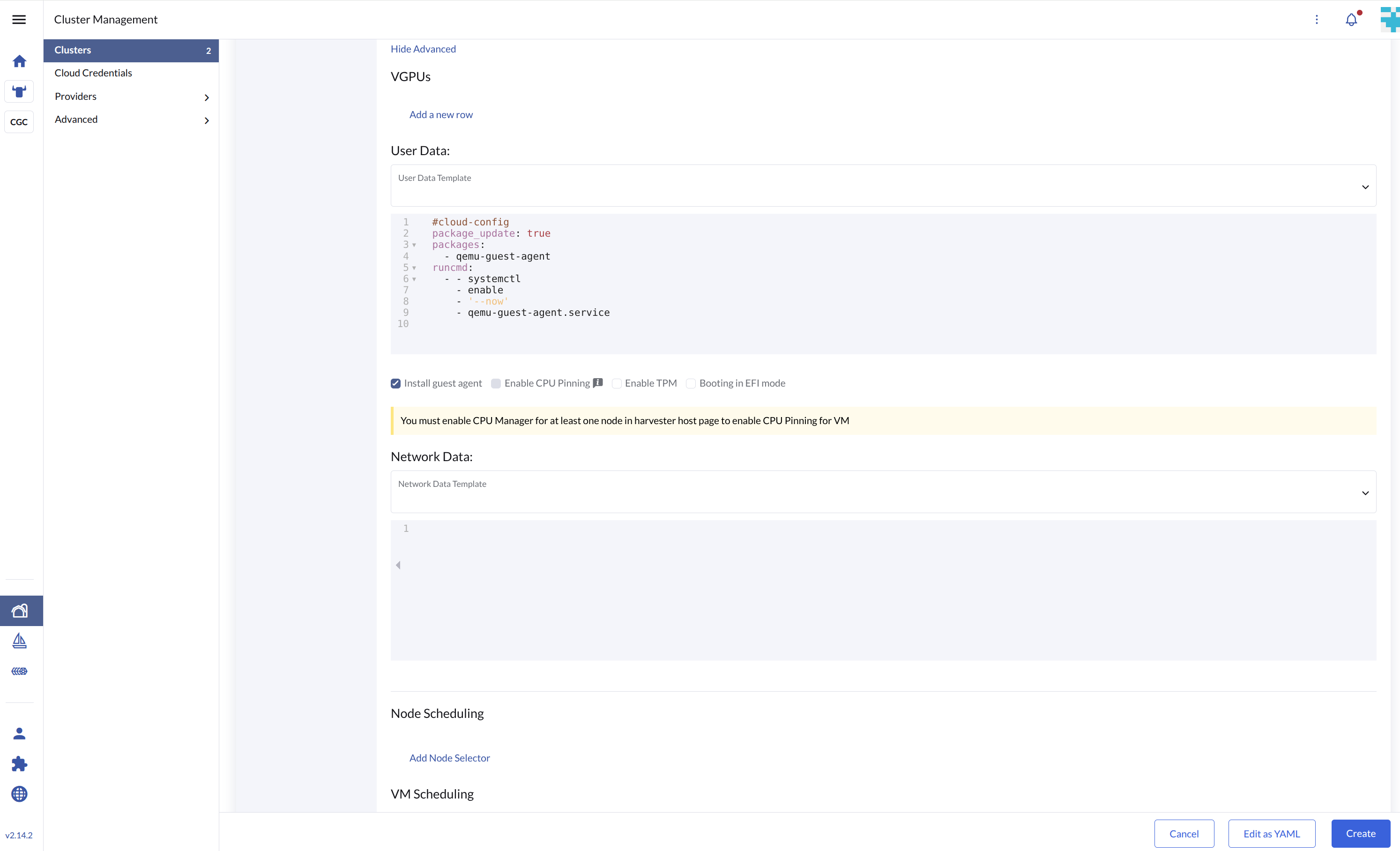
- (optional) Configure the Show Advanced > User Data to install the required packages of VM.
#cloud-config
package_update: true
packages:
  - qemu-guest-agent
runcmd:
  - - systemctl
    - enable
    - '--now'
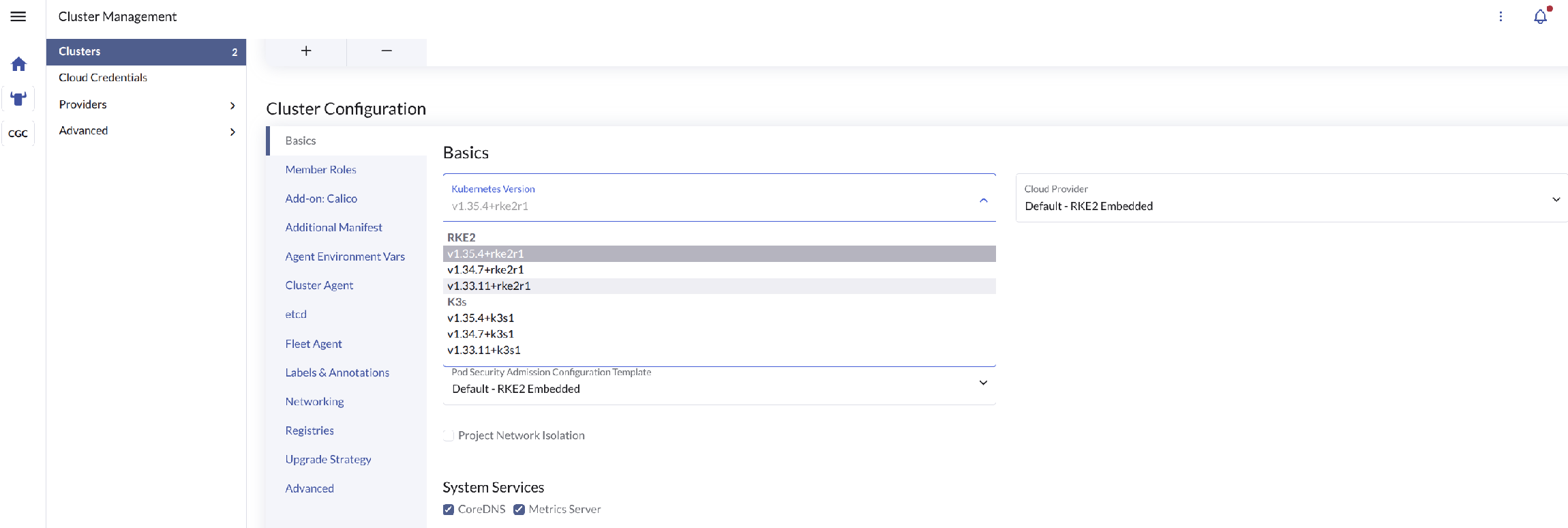
- qemu-guest-agent.service - In the Basics section, use the Kubernetes Version drop-down menu to select your preferred Kubernetes distribution (RKE2 or K3s) and its corresponding version.
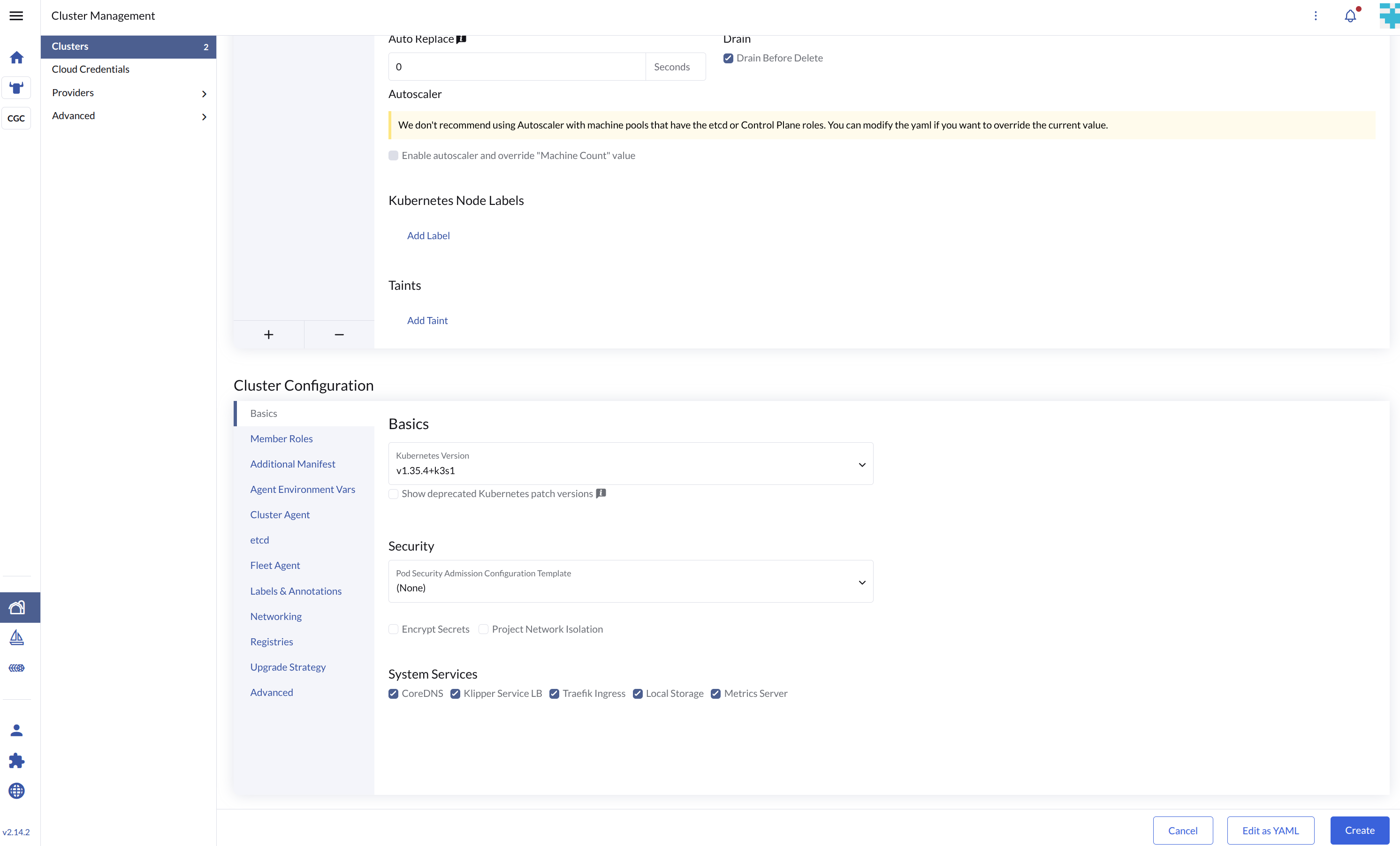
- Configure cluster-specific settings. (Loads dynamically based on your selection.)
- Click Create.
Ensure all Machine Pools use the same first(primary) Network. RKE2/K3s rely on this network to boot the cluster; using different networks across machine pools may cause the cluster to fail.
Machine Pools (Basic)
Machine Pools (Advanced)
Kubernetes Distribution & Version
K3s Settings (Only applies if K3s is selected)
- Only imported Harvester clusters are supported by the Harvester node driver.
Add node affinity
Available as of v1.0.3 + Rancher v2.6.7
The Harvester node driver now supports scheduling a group of machines to particular nodes through the node affinity rules. This provides high availability and better resource utilization.
Node affinity can be added to the machine pools during the cluster creation:
- Click the
Show Advancedbutton and click theAdd Node Selector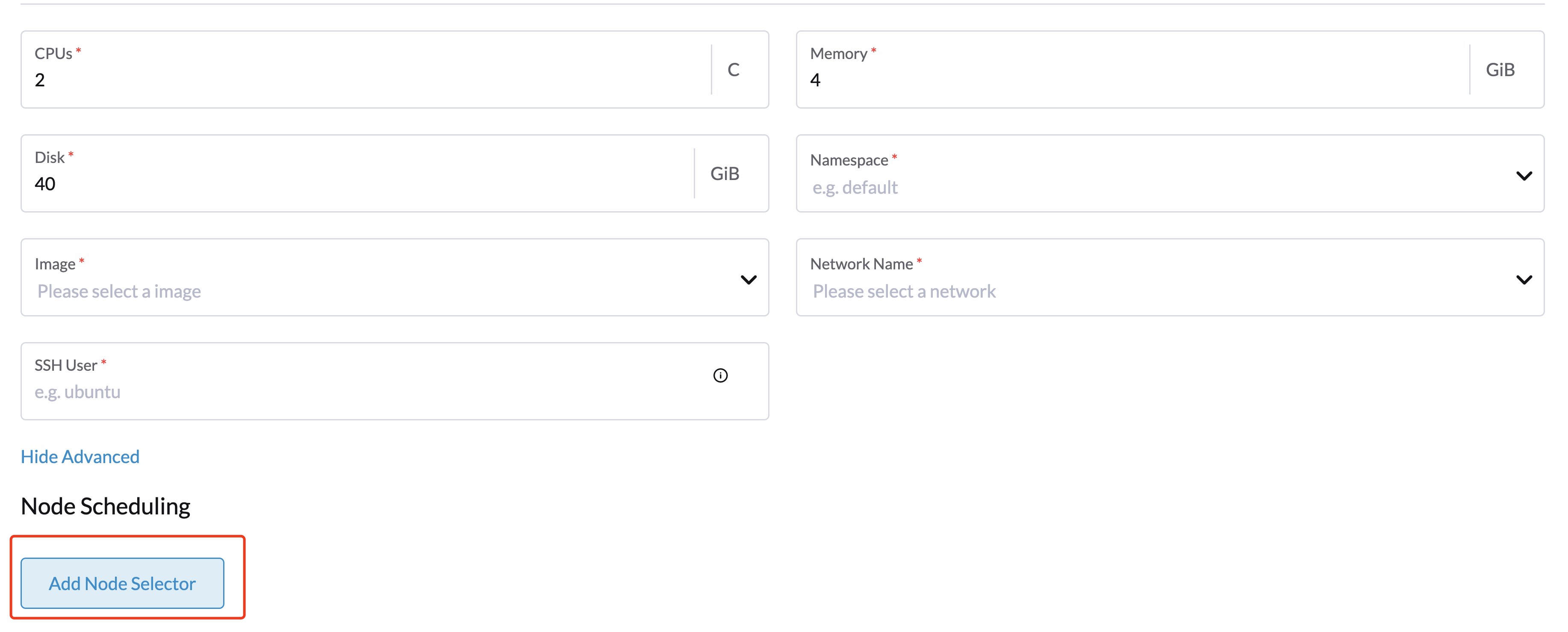
- Set priority to
Requiredif you wish the scheduler to schedule the machines only when the rules are met. - Click
Add Ruleto specify the node affinity rules, e.g., for the topology spread constraints use case, you can add theregionandzonelabels as follows:key: topology.kubernetes.io/region
operator: in list
values: us-east-1
---
key: topology.kubernetes.io/zone
operator: in list
values: us-east-1a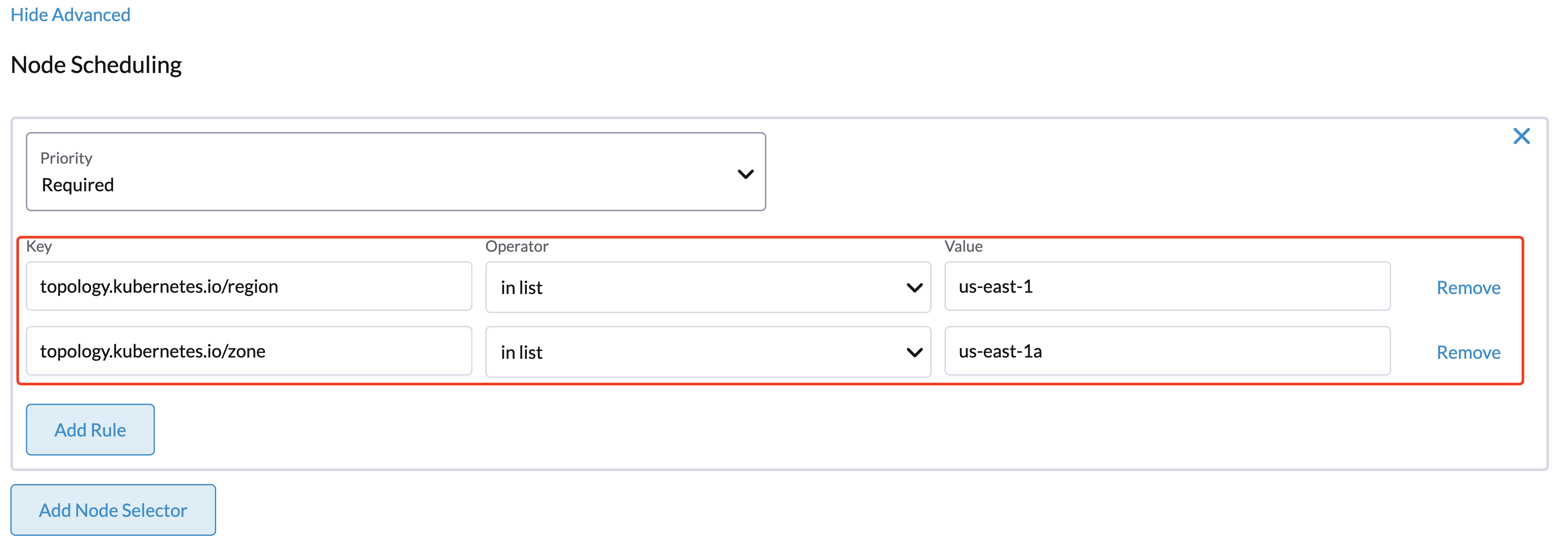
- Click
Createto save the node template. After the cluster is installed, you can check whether its machine nodes are scheduled according to the affinity rules.
Using Harvester K3s node driver in air gapped environment
K3s provisioning relies on the qemu-guest-agent package to get the IP of the virtual machine.
However, it may not be feasible to install packages in an air gapped environment.
You can address the installation constraints with the following options:
- Option 1. Use a VM image preconfigured with the required packages (e.g.,
iptables,qemu-guest-agent). - Option 2. Go to Show Advanced > User Data to allow VMs to install the required packages via an HTTP(S) proxy.
Example of user data in Harvester node template:
#cloud-config
apt:
  http_proxy: http://192.168.0.1:3128
  https_proxy: http://192.168.0.1:3128
Known Issue: Cannot provision K3s after re-registering cluster
Cluster provisioning may fail with an error similar to:
clusters.management.cattle.io "<old-cluster-id>" not found
This can occur if a Harvester cluster was removed and re-registered in Rancher, leaving behind stale CloudCredentials.
For details and workaround, see: Harvester Cloud Provider documentation